Prometheus is our monitoring and trending system. It collects metrics from all TPA-managed hosts and external services, and sends alerts when out-of-bound conditions occur.
Prometheus also supports basic graphing capabilities although those are limited enough that we use a separate graphing layer on top (see Grafana).
This page also documents auxiliary services connected to Prometheus like the Karma alerting dashboard and IRC bots.
[[TOC]]
Tutorial
If you're just getting started with Prometheus, you might want to follow the training course or see the web dashboards section.
Training course plan
- Where can I find documentation? In the wiki, in Prometheus service page (this page) but also the Grafana service page
- Where do I reach the different web sites for the monitoring service? See the web dashboards section
- Where do i watch for alerts? Join the
#tor-alertsIRC channel! See also how to access alerting history - How can we use silences to prevent some alerts from firing? See Silencing an alert in advance and following
- Architecture overview
- Alerting philosophy
- Where are we in TPA-RFC-33, show the various milestones:
- %"TPA-RFC-33-A: emergency Icinga retirement"
- %"TPA-RFC-33-B: Prometheus server merge, more exporters"
- %"TPA-RFC-33-C: Prometheus high availability, long term metrics, other exporters"
- If time permits...
- PromQL primer
- (last time we did this training, we crossed the 1h mark here)
- Adding metrics
- Adding alerts
- Alert debugging:
- Alert unit tests
- Alert routing tests
- Ensuring the tags required for routing are there
- Link to prom graphs from prom's alert page
Web dashboards
The main Prometheus web interface is available at:
https://prometheus.torproject.org
It's protected by the same "web password" as Grafana, see the basic authentication in Grafana for more information.
A simple query you can try is to pick any metric in the list and click
Execute. For example, this link will show the 5-minute load
over the last two weeks for the known servers.
The Prometheus web interface is crude: it's better to use Grafana dashboards for most purposes other than debugging.
It also shows alerts, but for that, there are better dashboards, see below.
Note that the "classic" dashboard has been deprecated upstream and, starting from Debian 13, has been failing at some tasks. We're slowly replacing it with Grafana and Fabric scripts, see tpo/tpa/team#41790 for progress.
For general queries, in particular, use the
prometheus.query-to-series task, for example:
fab prometheus.query-to-series --expression 'up!=1'
... will show jobs that are "down".
Alerting dashboards
There are a couple of web interfaces to see alerts in our setup:
- Karma dashboard - our primary view on currently firing alerts. The alerts are grouped by labels.
- This web interface only shows what's current, not some form of alert history.
- Shows links to "run books" related to alerts
- Useful view:
@state!=suppressedto hide silenced alerts from the dashboard by default. - Grafana availability dashboard - drills down into alerts and, more importantly shows their past values.
- Prometheus' Alerts dashboard - show all alerting rules and which file they are from
- Also contains links to graphs based on alerts' PromQL expressions
Normally, all rules are defined in the [prometheus-alerts.git
repository][]. Another view of this is the rules configuration
dump which also shows when the rule was last evaluated and how long
it took.
Each alert should have a URL to a "run book" in its annotations, typically a link to this very wiki, in the "Pager playbook" section, which shows how to handle any particular outage. If it's not present, it's a bug and can be filed as such.
Silencing alerts
With Alertmanager, you can stop alerts from sending notifications by creating a "silence". A silence is an expression matching alerts with tags and other values with a start and end times. Silences can have optional author name and description, and we strongly recommend setting them so that others can refer to you if they have questions.
The main method for managing silences is via the Karma dashboard. You can also manage them on the command line via fabric.
Silencing an alert in advance
Say you are planning some service maintenance and expect an alert to trigger, but you don't want things to be screaming everywhere.
For this, you want to create a "silence", which technically resides in the Alertmanager, but we manage them through the Karma dashboard.
Here is how to set an alert to silence notifications in the future:
- Head for the Karma dashboard
- Click on the "bell" on the top right
-
Enter a label name and value matching the expected alert, typically you would pick
alertnameas a key and the name as the value (e.g.JobDownfor a reboot)You will also likely want to select an
aliasto match for a specific host. 4. Pick the duration: this can be done through duration (e.g. one hour is the default) or start and end time 5. Enter your name 6. Enter a comment describing why this silence is there, preferably pointing at an issue describing the work. 7. ClickPreview8. It will likely say "No alerts matched", ignore that and clickSubmit
When submitting an alert, Karma is quite terse: it only shows a green checkbox and a UUID, which is the unique identifier for this alert, as a link to the Alertmanager. Don't click that link, as it doesn't work and anyways we can do everything we do with alerts in Karma.
Silencing active alerts
Silencing active alerts is slightly easier than planning one in advance. You can just:
- Head for the Karma dashboard
- Click on the "hamburger menu"
- Select "Silence this group"
- Change the comment to link to the incident or who's working on this
- Click
Preview - It will show which alerts are affected, click
Submit
When submitting an alert, Karma is quite terse: it only shows a green checkbox and a UUID, which is the unique identifier for this alert, as a link to the Alertmanager. Don't click that link, as it doesn't work and anyways we can do everything we do with alerts in Karma.
Note that you can replace steps 2 and 3 above with a series of manipulations to get a filter in the top bar that corresponds to what you want to silence (for example clicking on a label in alerts, or manually entering new filtering criteria) and then clicking on the bell icon at the top, just right of the filter bar. This method can help you create a silence for more than just one alert at a time.
Adding and updating silences with fabric
You can use Fabric to manage silences from the command line or via scripts. This is mostly useful for automatically adding a silence from some other, higher-level tasks. But you can use the fabric task either directly or in other scripts if you'd like.
Here's an example for adding a new silence for all backup alerts for the host idle-dal-02.torproject.org with author "wario" and a comment:
fab silence.create --comment="machine waiting for first backup" \
  --matchers job=bacula --matchers alias=idle-dal-02.torproject.org \
  --ends-at "in 5 days" --created-by "wario"
The author is optional and defaults to the local username. Make sure
you have a valid user set in your configuration and to set a correct
--comment so that others can understand the goal of the silence and
can refer to you for questions. The user comes from the
getpass.getuser Python function, see that documentation on how
to override defaults from the environment.
The matchers option can be specified multiple times. All values of the matchers option must match for the silence to find alerts (so the values have an "and" type boolean relationship)
The --starts-at option is not specified in the example above and
that implies that the silence starts from "now". You can use
--starts-at for example for planning a silence that will only take
effect at the start of a planned maintenance window in the future.
The --starts-at and --ends-at options both accept either ISO 8601
formatted dates or textual dates accepted by the dateparser
Python module.
Finally, if you want to update a silence, the command is slightly different but
the arguments are the same, except for one addition silence-id which specifies
the ID of the alert that needs to be modified:
fab silence.update --silence-id=9732308d-3390-433e-84c9-7f2f0b2fe8fa \
  --comment="machine waiting for first backup - tpa/tpa/team#12345678" \
  --matchers job=bacula --matchers alias=idle-dal-02.torproject.org \
  --ends-at "in 7 days" --created-by "wario"
Adding metrics to applications
If you want your service to be monitored by Prometheus, you need to write or reuse an existing exporter. Writing an exporter is more involved, but still fairly easy and might be necessary if you are the maintainer of an application not already instrumented for Prometheus.
The actual documentation is fairly good, but basically: a
Prometheus exporter is a simple HTTP server which responds to a
specific HTTP URL (/metrics, by convention, but it can be
anything). It responds with a key/value list of entries, one on each
line, in a simple text format more or less following the
OpenMetrics standard.
Each "key" is a simple string with an arbitrary list of "labels" enclosed in curly braces. The value is a float or integer.
For example, here's how the "node exporter" exports CPU usage:
# HELP node_cpu_seconds_total Seconds the cpus spent in each mode.
# TYPE node_cpu_seconds_total counter
node_cpu_seconds_total{cpu="0",mode="idle"} 948736.11
node_cpu_seconds_total{cpu="0",mode="iowait"} 1659.94
node_cpu_seconds_total{cpu="0",mode="irq"} 0
node_cpu_seconds_total{cpu="0",mode="nice"} 516.23
node_cpu_seconds_total{cpu="0",mode="softirq"} 16491.47
node_cpu_seconds_total{cpu="0",mode="steal"} 0
node_cpu_seconds_total{cpu="0",mode="system"} 35893.84
node_cpu_seconds_total{cpu="0",mode="user"} 67711.74
Note that the HELP and TYPE lines look like comments, but they are
actually important, and misusing them will lead to the metric being
ignored by Prometheus.
Also note that Prometheus's actual support for OpenMetrics varies across the ecosystem. It's better to rely on Prometheus' documentation than OpenMetrics when writing metrics for Prometheus.
Obviously, you don't necessarily have to write all that logic yourself, however: there are client libraries (see the Golang guide, Python demo or C documentation for examples) that do most of the job for you.
In any case, you should be careful about the names and labels of the metrics. See the metric and label naming best practices.
Once you have an exporter endpoint (say at
http://example.com:9090/metrics), make sure it works:
curl http://example.com:9090/metrics
This should return a number of metrics that change (or not) at each call. Note that there's a registry of official Prometheus export port numbers that should be respected, but it's full (oops).
From there on, provide that endpoint to the sysadmins (or someone with access to the external monitoring server), which will follow the procedure below to add the metric to Prometheus.
Once the exporter is hooked into Prometheus, you can browse the
metrics directly at: https://prometheus.torproject.org. Graphs
should be available at https://grafana.torproject.org, although
those need to be created and committed into git by sysadmins to
persist, see the [grafana-dashboards.git repository][] for more
information.
Adding scrape targets
"Scrape targets" are remote endpoints that Prometheus "scrapes" (or fetches content from) to get metrics.
There are two ways of adding metrics, depending on whether or not you have access to the Puppet server.
Adding metrics through the git repository
People outside of TPA without access to the Puppet server can
contribute targets through a repo called
[prometheus-alerts.git][]. To add a scrape target:
-
Clone the repository, if not done already:
git clone https://gitlab.torproject.org/tpo/tpa/prometheus-alerts/ cd prometheus-alerts -
Assuming you're adding a node exporter, to add the target:
cat > targets.d/node_myproject.yaml <<EOF # scrape the external node exporters for project Foo --- - targets: - targetone.example.com - targettwo.example.com -
Add, commit, and push:
git checkout -b myproject
git add targets.d
git commit -m"add node exporter targets for my project"
git push origin -u myproject
The last push command should show you the URL where you can submit your merge request.
After being merged, the changes should propagate within 4 to 6 hours. Prometheus automatically reloads those rules when they are deployed.
See also the [targets.d documentation in the git repository][].
Adding metrics through Puppet
TPA-managed services should define their scrape jobs, and thus targets, via puppet profiles.
To add a scrape job in a puppet profile, you can use the
prometheus::scrape_job defined type, or one of the defined types which are
convenience wrappers around that.
Here is, for example, how the GitLab runners are scraped:
# tell Prometheus to scrape the exporter
@@prometheus::scrape_job { "gitlab-runner_${facts['networking']['fqdn']}_9252":
  job_name => 'gitlab_runner',
  targets  => [ "${facts['networking']['fqdn']}:9252" ],
  labels   => {
    'alias' => $facts['networking']['fqdn'],
    'team'  => 'TPA',
  },
}
The job_name (gitlab_runner above) needs to be added to the
profile::prometheus::server::internal::collect_scrape_jobs list in
hiera/common/prometheus.yaml, for example:
profile::prometheus::server::internal::collect_scrape_jobs:
  # [...]
  - job_name: 'gitlab_runner'
  # [...]
Note that you will likely need a firewall rule to poke a hole for the exporter:
# grant Prometheus access to the exporter, activated with the
# listen_address parameter above
Ferm::Rule <<| tag == 'profile::prometheus::server-gitlab-runner-exporter' |>>
That rule, in turn, is defined with the
profile::prometheus::server::rule define, in
profile::prometheus::server::internal, like so:
profile::prometheus::server::rule {
  # [...]
  'gitlab-runner': port => 9252;
  # [...]
}
Targets for scrape jobs defined in Hiera are however not managed by
puppet. They are defined through files in the [prometheus-alerts.git
repository][]. See the section below for more details on how things
are maintained there. In the above example, we can see that targets
are obtained via files on disk. The [prometheus-alerts.git
repository][] is cloned in /etc/prometheus-alerts on the Prometheus
servers.
Note: we currently have a handful of blackbox_exporter-related targets for TPA
services, namely for the HTTP checks. We intend to move those into puppet
profiles whenever possible.
Manually adding targets in Puppet
Normally, services configured in Puppet SHOULD automatically be
scraped by Prometheus (see above). If, however, you need to manually
configure a service, you may define extra jobs in the
$scrape_configs array, in the
profile::prometheus::server::internal Puppet class.
For example, because the GitLab setup is fully managed by Puppet
(e.g. [gitlab#20][], but other similar issues remain), we
cannot use this automatic setup, so manual scrape targets are defined
like this:
  $scrape_configs =
  [
    {
      'job_name'       => 'gitaly',
      'static_configs' => [
        {
          'targets' => [
            'gitlab-02.torproject.org:9236',
          ],
          'labels'  => {
            'alias' => 'Gitaly-Exporter',
          },
        },
      ],
    },
    [...]
  ]
But ideally those would be configured with automatic targets, below.
Metrics for the internal server are scraped automatically if the
exporter is configured by the [puppet-prometheus][] module. This is
done almost automatically, apart from the need to open a firewall port
in our configuration.
To take the apache_exporter, as an example, in
profile::prometheus::apache_exporter, include the
prometheus::apache_exporter class from the upstream Puppet module,
then we open the port to the Prometheus server on the exporter, with:
Ferm::Rule <<| tag == 'profile::prometheus::server-apache-exporter' |>>
Those rules are declared on the server, in prometheus::prometheus::server::internal.
Adding a blackbox target
Most exporters are pretty straightforward: a service binds to a port and exposes
metrics through HTTP requests on that port, generally on the /metrics URL.
The blackbox exporter is a special case for exporters: it is scraped by Prometheus via multiple scrape jobs and each scrape job has targets defined.
Each scrape job represents one type of check (e.g. TCP connections, HTTP requests, ICMP ping, etc) that the blackbox exporter is launching and each target is a host or URL or other "address" that the exporter will try to reach. The check will be initiated from the host running the blackbox exporter to the target at the moment the Prometheus server is scraping the exporter.
The blackbox exporter is rather peculiar and counter-intuitive, see the how to debug the blackbox exporter for more information.
Scrape jobs
In Prometheus's point of view, two information are needed:
- The address and port of the host where Prometheus can reach the blackbox exporter
- The target (and possibly the port tested) that the exporter will try to reach
Prometheus transfers the information above to the exporter via two labels:
__address__is used to determine how Prometheus can reach the exporter. This is standard, but because of how we create the blackbox targets, it will initially contain the address of the blackbox target instead of the exporter's. So we need to shuffle label values around in order for the__address__label to contain the correct value.__param_targetis used by the blackbox exporter to determine what it should contact when running its test, i.e. what is the target of the check. So that's the address (and port) of the blackbox target.
The reshuffling of labels mentioned above is achieved with the relabel_configs
option for the scrape job.
For TPA-managed services, we define this scrape jobs in Hiera in
common/prometheus.yml under keys named collect_scrape_jobs. Jobs in those
keys expect targets to be exported by other parts of the puppet code.
For example, here's how the ssh scrape job is configured:
- job_name: 'blackbox_ssh_banner'
  metrics_path: '/probe'
  params:
    module:
      - 'ssh_banner'
  relabel_configs:
    - source_labels:
        - '__address__'
      target_label: '__param_target'
    - source_labels:
        - '__param_target'
      target_label: 'instance'
    - target_label: '__address__'
      replacement: 'localhost:9115'
Scrape jobs for non-TPA services are defined in Hiera under keys named
scrape_configs in hiera/common/prometheus.yaml. Jobs in those keys expect to
find their targets in files on the Prometheus server, through the
prometheus-alerts repository. Here's one example of such a scrape job
definition:
profile::prometheus::server::external::scrape_configs:
# generic blackbox exporters from any team
- job_name: blackbox
  metrics_path: "/probe"
  params:
    module:
    - http_2xx
  file_sd_configs:
  - files:
    - "/etc/prometheus-alerts/targets.d/blackbox_*.yaml"
  relabel_configs:
  - source_labels: [__address__]
    target_label: __param_target
  - source_labels: [__param_target]
    target_label: instance
  - target_label: __address__
    replacement: localhost:9115
In both of the examples, the relabel_configs starts by copying the target's
address into the __param_target label. It also populates the instance label
with the same value since that label is used in alerts and graphs to display
information. Finally, the __address__ label is overridden with the address
where Prometheus can reach the exporter.
Known pitfalls with blackbox scrape jobs
Some tests that can be performed with blackbox exporter can have some pitfalls, cases where the monitoring is not doing what you'd expect and thus we're not receiving the information required for proper monitoring. This is a list of some known issues that you should look out for:
- With the
httpmodule, if you let it follow redirections it simplifies some checks. However, this has the potential side-effect that the metrics associated with the SSL certificate for that check does not contain information about the certificate of the domain name of the target, but rather about the certificate for the domain last visited (after following redirections). So certificate expiration alerts will not be alerting about the right thing!
Targets
TPA-managed services use puppet exported resources in the appropriate profiles.
The targets parameter is used to convey information about the blackbox
exporter target (the host being tested by the exporter).
For example, this is how the ssh scrape jobs (in
modules/profile/manifests/ssh.pp) are created:
@@prometheus::scrape_job { "blackbox_ssh_banner_${facts['networking']['fqdn']}":
  job_name => 'blackbox_ssh_banner',
  targets  => [ "${facts['networking']['fqdn']}:22" ],
  labels   => {
    'alias' => $facts['networking']['fqdn'],
    'team'  => 'TPA',
  },
}
For non-TPA services, the targets need to be defined in the prometheus-alerts
repository.
The targets defined this way for blackbox exporter look exactly like normal
Prometheus targets, except that they define what the blackbox exporter will try
to reach. The targets can be hostname:port pairs or URLs, depending on the
nature of the type of check being defined.
See documentation for targets in the repository for more details
PromQL primer
The upstream documentation on PromQL can be a little daunting, so we provide you with a few examples from our infrastructure.
A query, fundamentally, asks the Prometheus server to query its database for a given metric. For example, this simple query will return the status of all exporters, with a value of 0 (down) or 1 (up):
up
You can use labels to select a subset of those, for example this will
only check the [node_exporter][]:
up{job="node"}
You can also match the metric against a value, for example this will list all exporters that are unavailable:
up{job="node"}==0
The up metric is not very interesting because it doesn't change
often. It's tremendously useful for availability of course, but
typically we use more complex queries.
This, for example, is the number of accesses on the Apache web server,
according to the [apache_exporter][]:
apache_accesses_total
In itself, however, that metric is not that useful because it's a
constantly incrementing counter. What we want is actually the rate
of that counter, for which there is of course a function, rate(). We
need to apply that to a vector, however, a series of samples
for the above metric, over a given time period, or a time
series. This, for example, will give us the access rate over 5
minutes:
rate(apache_accesses_total[5m])
That will give us a lot of results though, one per web server. We might want to regroup those, for example, so we would do something like:
sum(rate(apache_accesses_total[5m])) by (classes)
Which would show you the access rate by "classes" (which is our poorly-named "role" label).
Another similar example is this query, which will give us the number of bytes incoming or outgoing, per second, in the last 5 minutes, across the infrastructure:
sum(rate(node_network_transmit_bytes_total[5m]))
sum(rate(node_receive_transmit_bytes_total[5m]))
Finally, you should know about the difference between rate and
increase. The rate() is always "per second", and can be a little
hard to read if you're trying to figure our things like "how many hits
did we have in the last month", or "how much data did we actually
transfer yesterday". For that, you need increase() which will
actually count the changes in the time period. So for example, to
answer those two questions, this is the number of hits in the last
month:
sum(increase(apache_accesses_total[30d])) by (classes)
And the data transferred in the last 24h:
sum(increase(node_network_transmit_bytes_total[24h]))
sum(increase(node_receive_transmit_bytes_total[24h]))
For more complex examples of queries, see the queries cheat sheet,
the [prometheus-alerts.git repository][], and the
[grafana-dashboards.git repository][].
Writing an alert
Now that you have metrics in your application and those are scraped by Prometheus, you are likely going to want alert on some of those metrics. Be careful writing alerts that are not too noisy, and alert on user-visible symptoms, not on underlying technical issues you think might affect users, see our Alerting philosophy for a discussion on that.
An alerting rule is a simple YAML file that consists mainly of:
- A name (say
JobDown). - A Prometheus query, or "expression" (say
up != 1). - Extra labels and annotations.
Expressions
The most important part of the alert is the expr field, which is a
Prometheus query that should evaluate to "true" (non-zero) for the
alert to fire.
Here is, for example, the first alert in the [rules.d/tpa_node.rules
file][]:
  - alert: JobDown
    expr: up < 1
    for: 15m
    labels:
      severity: warning
    annotations:
      summary: 'Exporter job {{ $labels.job }} on {{ $labels.instance }} is down'
      description: 'Exporter job {{ $labels.job }} on {{ $labels.instance }} has been unreachable for more than 15 minutes.'
      playbook: "https://gitlab.torproject.org/tpo/tpa/team/-/wikis/howto/prometheus/#exporter-job-down-warnings"
In the above, Prometheus will generate an alert if the metric up is
not equal to 1 for more than 15 minutes, hence up < 1.
See the PromQL primer for more information about queries and the queries cheat sheet for more examples.
Duration
The for field means the alert is not immediately passed down to the
Alertmanager until that time has passed. It is useful to avoid
flapping and temporary conditions.
Here are some typical for delays we use, as a rule of thumb:
0s: checks that already have a built-in time threshold in its expression (see below), or critical condition requiring immediate action, immediate notification (default). Examples:AptUpdateLagging(checks forapt updatenot running for more than 24h),RAIDDegraded(failed disk won't come back on its own in 15m)15m: availability checks, designed to ignore transient errors. Examples:JobDown,DiskFull1h: consistency checks, things an operator might have deployed incorrectly but could recover on its own. Examples:OutdatedLibraries, asneedrestartmight recover at the end of the upgrade job, which could take more than 15m1d: daily consistency check. Examples:PackagesPendingTooLong(upgrades are supposed to run daily)
Try to align yourself, but don't obsess over those. If an alert is better suited
to a for delay that differs from the above, simply add a comment to the alert
to explain why the period is being used.
Grouping
At this point, what it effectively does is generate a message that it
passes along to the Alertmanager with the annotations, the labels
defined in the alerting rule (severity="warning"). It also passes
along all other labels that might be attached to the up metric*,
which is important, as the query can modify which labels are
visible. For example, the up metric typically looks like this:
up{alias="test-01.torproject.org",classes="role::ldapdb",instance="test-01.torproject.org:9100",job="node",team="TPA"} 1
Also note that this single expression will generate multiple alerts for multiple matches. For example, if two hosts are down, the metric would look like this:
up{alias="test-01.torproject.org",classes="role::ldapdb",instance="test-01.torproject.org:9100",job="node",team="TPA"} 0
up{alias="test-02.torproject.org",classes="role::ldapdb",instance="test-02.torproject.org:9100",job="node",team="TPA"} 0
This will generate two alerts. This matters, because it can create a lot of noise and confusion on the other end. A good way to deal with this is to use aggregation operators. For example, here is the DRBD alerting rule, which often fires for multiple disks at once because we're mass-migrating instances in Ganeti:
- alert: DRBDDegraded
    expr: count(node_drbd_disk_state_is_up_to_date != 1) by (job, instance, alias, team)
    for: 1h
    labels:
      severity: warning
    annotations:
      summary: "DRBD has {{ $value }} out of date disks on {{ $labels.alias }}"
      description: "Found {{ $value }} disks that are out of date on {{ $labels.alias }}."
      playbook: "https://gitlab.torproject.org/tpo/tpa/team/-/wikis/howto/drbd#resyncing-disks"
The expression, here, is:
sum(node_drbd_disk_state_is_up_to_date != 1) by (job, instance, alias, team)
This matters because otherwise this would create a lot of alerts,
one per disk! For example, on fsn-node-01, there are 52 drives:
count(node_drbd_disk_state_is_up_to_date{alias=~"fsn-node-01.*"}) == 52
So we use the count() function to count the number of drives per
machine. Technically, we count by (job, instance, alias, team), but
typically, the 4 metrics will be the same for each alert. We still
have to specify all of those because otherwise they get redacted by
the aggregation function.
Note that the Alertmanager does its own grouping as well, see the
group_by setting.
Labels
As mentioned above, labels typically come from the metrics used in the alerting rule itself. It's the job of the exporter and the Prometheus configuration to attach most necessary labels to the metrics for the Alertmanager to function properly. In conjunction with metrics that come from the exporter, we expect the following labels to be produced by either the exporter, the Prometheus scrape configuration, or alerting rule:
| Label | syntax | normal example | backup example | blackbox example |
|---|---|---|---|---|
job |
name of the job | node |
bacula |
blackbox_https_2xx_or_3xx |
team |
name of the team | TPA |
TPA |
TPA |
severity |
warning or critical |
warning |
warning |
warning |
instance |
host:port |
web-fsn-01.torproject.org:9100 |
bacula-director-01.torproject.org:9133 |
localhost:9115 |
alias |
host |
web-fsn-01.torproject.org |
web-fsn-01.torproject.org |
web-fsn-01.torproject.org |
target |
target used by blackbox | not produced | not produced | www.torproject.org |
Some notes about the lines of the table above:
-
team: which group to contact for this alert, which affects how alerts get routed. See List of team names -
severity: affects alert routing. Usewarningunless the alert absolutely needs immediate attention. TPA-RFC-33 defines the alert levels as: -
warning(new): non-urgent condition, requiring investigation and fixing, but not immediately, no user-visible impact; example: server needs to be rebooted -
critical: serious condition with disruptive user-visible impact which requires prompt response; example: donation site returns 500 errors -
instance: host name and port that Prometheus used for scraping.
For example, for the node exporter it is port 9100 on the monitored host, but for other exporters, it might be another host running the exporter.
Another example, for the blackbox exporter, it is port
9115 on the blackbox exporter (localhost by default, but there's a
blackbox exporter running to monitor the Redis tunnel on the donate
service).
For backups, the exporter is running on the Bacula director, so the
instance is bacula-director-01.torproject.org:9133, where the
bacula exporter runs.
alias: FQDN of the host concerned by the scraped metrics.
For example, for a blackbox check, this would be the host that serves an HTTPS website we're getting information about. For backups, this would be the FQDN of the machine that is getting backed up.
This is not the same as "instance without a port", as this
does not point to the exporter.
target: in the case of a blackbox alert, the actual target being checked. Can be for example the full URL, or the SMTP host name and port, etc.
Note that for URLs, we rely on the blackbox module to determine the
scheme that's used for HTTP/HTTPS checks, so we set the target
without the scheme prefix (e.g. no https:// prefix). This lets us
link HTTPS alerts to HTTP ones in alert inhibitions.
Annotations
Annotations are another field that's part of the alert generated by
Prometheus. Those are use to generate messages for the users,
depending on the Alertmanager routing. The summary field ends up in
the Subject field of outgoing email, and the description is the
email body, for example.
Those fields are Golang templates with variables accessible with
curly braces. For example, {{ $value }} is the actual value of the
metric in the expr query. The list of available variables is
somewhat obscure, but some of it is visible in the Prometheus
template reference and the Alertmanager template reference. The
Golang template system also comes with its own limited set of
built-in functions.
Writing a playbook
Every alert in Prometheus must have a playbook annotation. This is
(if done well), a URL pointing at a service page like this one,
typically in the Pager playbook section, that explains how to deal
with the alert.
The playbook must include those things:
-
The actual code name of the alert (e.g.
JobDownorDiskWillFillSoon). -
An example of the alert output (e.g.
Exporter job gitlab_runner
    on tb-build-02.torproject.org:9252 is down
). -
Why this alert triggered, what is its impact.
-
Optionally, how to reproduce the issue.
-
How to fix it.
How to reproduce the issue is optional, but important. Think of yourself in the future, tired and panicking because things are broken:
- Where do you think the error will be visible?
- Can we
curlsomething to see it happening? - Is there a dashboard where you can see trends?
- Is there a specific Prometheus query to run live?
- Which log file can we inspect?
- Which systemd service is running it?
The "how to fix it" can be a simple one line, or it can go into a multiple case example of scenarios that were found in the wild. It's the hard part: sometimes, when you make an alert, you don't actually know how to handle the situation. If so, explicitly state that problem in the playbook, and say you're sorry, and that it should be fixed.
If the playbook becomes too complicated, consider making a Fabric script out of it.
A good example of a proper playbook is the text file collector errors playbook here. It has all the above points, including actual fixes for different actual scenarios.
Here's a template to get started:
### Foo errors

The `FooDegraded` looks like this:

    Service Foo has too many errors on test.torproject.org

It means that the service Foo is having some kind of trouble. [Explain
why this happened, and what the impact is, what means for which
users. Are we losing money, data, exposing users, etc.]

[Optional] You can tell this is a real issue by going to place X and
trying Y.

[Ideal] To fix this issue, [inverse the polarity of the shift inverter
in service Foo].

[Optional] We do not yet exactly know how to fix issue, sorry. Please
document here how you fix this next time.
Alerting rule template
Here is an alert template that has most fields you should be using in your alerts.
- alert: FooDegraded
    expr: sum(foo_error_count) by (job, instance, alias, team)
    for: 1h
    labels:
      severity: warning
    annotations:
      summary: "Service Foo has too many errors on {{ $labels.alias }}"
      description: "Found {{ $value }} errors in service Foo on {{ $labels.alias }}."
      playbook: "https://gitlab.torproject.org/tpo/tpa/team/-/wikis/service/foo#too-many-errors"
Adding alerting rules to Prometheus
Now that you have an alert, you need to deploy it. The Prometheus
servers regularly pull the [prometheus-alerts.git repository][] for
alerting rule and target definitions. Alert rules can be added through
the repository by adding a file in the rules.d directory, see
[rules.d][] directory for more documentation on that.
Note the top of .rules file, for example in the above
tpa_node.rules sample we didn't include:
groups:
- name: tpa_node
  rules:
That structure just serves to declare the rest of the alerts in the
file. However, consider that "rules within a group are run
sequentially at a regular interval, with the same evaluation time"
(see the recording rules documentation). So avoid putting all
alerts inside the same file. In TPA, we group alerts by exporter, so
we have (above) tpa_node for alerts pertaining to the
[node_exporter][], for example.
After being merged, the changes should propagate within 4 to 6 hours. Prometheus does not automatically reload those rules by itself, but Puppet should handle reloading the service as a consequence of the file changes. TPA members can accelerate this by running Puppet on the Prometheus servers, or pulling the code and reloading the Prometheus server with:
git -C /etc/prometheus-alerts/ pull
systemctl reload prometheus
Other expression examples
The AptUpdateLagging alert is a good example of an expression with a
built-in threshold:
(time() - apt_package_cache_timestamp_seconds)/(60*60) > 24
What this does is calculate the age of the package cache (given by the
apt_package_cache_timestamp_seconds metric) by subtracting it from
the current time. It gives us a number of second, which we convert to
hours (/3600) and then check against our threshold (> 24). This
gives us a value (in this case, in hours), we can reuse in our
annotation. In general, the formula looks like:
(time() - metric_seconds)/$tick > $threshold
Where threshold is the order of magnitude (minutes, hours, days, etc)
similar to the threshold. Note the priority of operators here requires
putting the 60*60 tick in parenthesis.
The DiskWillFillSoon alert does a linear regression to try to
predict if a disk will fill in less than 24h:
  (node_filesystem_readonly != 1)
  and (
    node_filesystem_avail_bytes
    / node_filesystem_size_bytes < 0.2
  )
  and (
    predict_linear(node_filesystem_avail_bytes[6h], 24*60*60)
    < 0
  )
The core of the logic is the magic predict_linear function, but also
note how it also restricts its checks to file systems with only 20%
space left, to avoid warning about normal write spikes.
How-to
Accessing the web interface
Access to prometheus is granted in the same way as for grafana. To obtain access to the prometheus web interface and also to the karma alert dashboard, follow the instructions for accessing grafana
Queries cheat sheet
This section collects PromQL queries we find interesting.
Those are useful, but more complex queries we had to recreate a few times before writing them down.
If you're looking for more basic information about PromQL, see our PromQL primer.
Availability
Those are almost all visible from the availability dashboard.
Unreachable hosts (technically, unavailable node exporters):
up{job="node"} != 1
ALERTS{alertstate="firing"}
[How much time was the given service (node job, in this case) up in the past period (30d)][]:
avg(avg_over_time(up{job="node"}[30d]))
How many hosts are online at any given point in time:
sum(count(up==1))/sum(count(up)) by (alias)
How long did an alert fire over a given period of time, in seconds per day:
sum_over_time(ALERTS{alertname="MemFullSoon"}[1d:1s])
HTTP Status code associated with blackbox probe failures
sort((probe_success{job="blackbox_https_200"} < 1) + on (alias) group_right probe_http_status_code)
The latter is an example of vector matching, which allows you to
"join" multiple metrics together, in this case failed probes
(probe_success < 1) with their status code (probe_http_status_code).
Inventory
Those are visible in the main Grafana dashboard.
count(up{job="node"})
Number of machine per OS version:
count(node_os_info) by (version_id, version_codename)
Number of machines per exporters, or technically, number of machines per job:
sort_desc(sum(up{job=~"$job"}) by (job)
Number of CPU cores, memory size, file system and LVM sizes:
count(node_cpu_seconds_total{classes=~"$class",mode="system"})
sum(node_memory_MemTotal_bytes{classes=~"$class"}) by (alias)
sum(node_filesystem_size_bytes{classes=~"$class"}) by (alias)
sum(node_volume_group_size{classes=~"$class"}) by (alias)
See also the CPU, memory, and disk dashboards.
round((time() - node_boot_time_seconds) / (24*60*60))
Disk usage
This is a less strict version of the [DiskWillFillSoon alert][],
see also the disk usage dashboard.
Find disks that will be full in 6 hours:
predict_linear(node_filesystem_avail_bytes[6h], 24*60*60) < 0
Running commands on hosts matching a PromQL query
Say you have an alert or situation (e.g. high load) affecting multiple servers. Say, for example, that you have some issue that you fixed in Puppet that will clear such an alert, and want to run Puppet on all affected servers.
You can use the Prometheus JSON API to return the host list of the
hosts matching the query (in this case up < 1) and run commands (in
this case, Puppet, or patc) with Cumin:
cumin "$(curl -sSL --data-urlencode='up < 1' 'https://$HTTP_USER@prometheus.torproject.org/api/v1/query | jq -r .data.result[].metric.alias | grep -v '^null$' | paste -sd,)" 'patc'
Make sure to populate the HTTP_USER environment to authenticate with
the Prometheus server.
Alert debugging
We are now using Prometheus for alerting for TPA services. Here's a basic overview of how things interact around alerting:
- Prometheus is configured to create alerts on certain conditions on metrics.
- When the PromQL expression produces a result, an alert is created in state
pending. - If the PromQL keeps on producing a result for the whole
forduration configured in the alert, then the alert changes to statefiringand Prometheus then sends the alert to one or more Alertmanager instance. - Alertmanager receives alerts from Prometheus and is responsible for routing the alert to the appropriate channels. For example:
- A team's or service operator's email address
- TPA's IRC channel for alerts,
#tor-alerts - Karma and Grafana read alert data from Alertmanager and displays them in a way that can be used by humans.
Currently, the secondary Prometheus server (prometheus2) reproduces this setup
specifically for sending out alerts to other teams with metrics that are not
made public.
This section details how the alerting setup mentioned above works.
In general, the upstream documentation for alerting starts from the Alerting Overview but it can be lacking at times. This tutorial can be quite helpful in better understanding how things are working.
Note that Grafana also has its own alerting system but we are not using that, see the Grafana for alerting section of the TPA-RFC-33 proposal.
Diagnosing alerting failures
Normally, alerts should fire on the Prometheus server and be sent out to the Alertmanager server, and be visible in Karma. See also the alert routing details reference.
If you're not sure alerts are working, head to the Prometheus
dashboard and look at the /alerts, and /rules pages. For example:
- https://prometheus.torproject.org/alerts - should show the configure alerts, and if they are firing
- https://prometheus.torproject.org/rules - should show the configured rules, and whether they match
Typically, the Alertmanager address (currently
http://localhost:9093, but to be exposed) should also be useful
to manage the Alertmanager, but in practice the Debian package does
not ship the web interface, so its interest is limited in that
regard. See the amtool section below for more information.
Note that the [/api/v1/targets][] URL is also useful to diagnose problems
with exporters, in general, see also the troubleshooting section
below.
If you can't access the dashboard at all or if the above seems too complicated, Grafana can be used as a debugging tool for metrics as well. In the Explore section, you can input Prometheus metrics, with auto-completion, and inspect the output directly.
There's also the Grafana availability dashboard, see the Alerting dashboards section for details.
Managing alerts with amtool
Since the Alertmanager web UI is not available in Debian, you need to
use the [amtool][] command. A few useful commands:
amtool alert: show firing alertsamtool silence add --duration=1h --author=anarcat --comment="working on it" ALERTNAME: silence alertALERTNAMEfor an hour, with some comments
Checking alert history
Note that all alerts sent through the Alertmanager are dumped in system logs, through a first "fall through" web hook route:
  routes:
    # dump *all* alerts to the debug logger
    - receiver: 'tpa_http_post_dump'
      continue: true
The receiver is configured below:
  - name: 'tpa_http_post_dump'
    webhook_configs:
      - url: 'http://localhost:8098/'
This URL, in turn, runs a simple Python script that just dumps to a JSON log file all POST requests it receives, which provides us with a history of all notifications sent through the Alertmanager.
All logged entries since last boot can be seen with:
journalctl -u tpa_http_post_dump.service -b
This includes other status logs, so if you want to parse the actual
alerts, it's easier to use the logfile in
/var/log/prometheus/tpa_http_post_dump.json.
For example, you can see a prettier version of today's entries with
the jq command, for example:
jq -C . < /var/log/prometheus/tpa_http_post_dump.json | less -r
Or to follow updates in real time:
tail -F /var/log/prometheus/tpa_http_post_dump.json | jq .
The top-level objects are logging objects, you can also restrict the output to only the alerts being sent with:
tail -F /var/log/prometheus/tpa_http_post_dump.json | jq .args
... which is actually alert groups, which is how Alertmanager dispatches alerts. To see individual alerts inside that group, you want:
tail -F /var/log/prometheus/tpa_http_post_dump.json | jq .args.alerts[]
Logs are automatically rotated every day by the script itself, and kept for 30 days. That configuration is hardcoded in the script's source code.
See tpo/tpa/team#42222 for improvements on retention and more lookup examples.
Testing alerts
Prometheus can run unit tests for your defined alerts. See upstream unit test documentation.
We managed to build a minimal unit test for an alert. Note that for a unit test
to succeed, the test must match all the tags and annotations for alerts
that are expected, including ones that are added by rewrite in Prometheus:
root@hetzner-nbg1-02:~/tests# cat tpa_system.yml
rule_files:
  - /etc/prometheus-alerts/rules.d/tpa_system.rules

evaluation_interval: 1m

tests:
  # NOTE: interval is *necessary* here. contrary to what the documentation
  #  shows, leaving it out will not default to the evaluation_interval set
  #  above
  - interval: 1m
    # Set of fixtures for the tests below
    input_series:
      - series: 'node_reboot_required{alias="NetworkHealthNodeRelay",instance="akka.0x90.dk:9100",job="relay",team="network"}'
        # this means "one sample set to the value 60" or, as a Python
        # list: [1, 1, 1, 1, ..., 1] or [1 for _ in range(60)]
        #
        # in general, the notation here is 'a+bxn' which turns into
        # the list [a, a+b, a+(2*b), ..., a+(n*b)], or as a list
        # comprehention [a+i*b for i in range(n)]. b defaults to zero,
        # so axn is equivalent to [a for i in range(n)]
        #
        # see https://prometheus.io/docs/prometheus/latest/configuration/unit_testing_rules/#series
        values: '1x60'

    alert_rule_test:
        # NOTE: eval_time is the offset from 0s at which the alert should be
        #  evaluated. if it is shorter than the alert's `for` setting, you will
        #  have some missing values for a while (which might be something you
        #  need to test?). You can play with the eval_time in other test
        #  entries to evaluate the same alert at different offsets in the
        #  timeseries above.
        #
        # Note that the `time()` function returns zero when the evaluation
        # starts, and increments by `interval` until `eval_time` is
        # reached, which differs from how things work in reality,
        # where time() is the number of seconds since the
        # epoch.
        #
        # in other words, this means the simulation starts at the
        # Epoch and stops (here) an hour later.
        - eval_time: 60m
          alertname: NeedsReboot
          exp_alerts:
              # Alert 1.
              - exp_labels:
                    severity: warning
                    instance: akka.0x90.dk:9100
                    job: relay
                    team: network
                    alias: "NetworkHealthNodeRelay"
                exp_annotations:
                    description: "Found pending kernel upgrades for host NetworkHealthNodeRelay"
                    playbook: "https://gitlab.torproject.org/tpo/tpa/team/-/wikis/howto/reboots"
                    summary: "Host NetworkHealthNodeRelay needs to reboot"
The success result:
root@hetzner-nbg1-01:~/tests# promtool test rules tpa_system.yml
Unit Testing:  tpa_system.yml
  SUCCESS
A failing test will show you what alerts were obtained and how they compare to what your failing test was expecting:
root@hetzner-nbg1-02:~/tests# promtool test rules tpa_system.yml
Unit Testing:  tpa_system.yml
  FAILED:
    alertname: NeedsReboot, time: 10m,
        exp:[
            0:
              Labels:{alertname="NeedsReboot", instance="akka.0x90.dk:9100", job="relay", severity="warning", team="network"}
              Annotations:{}
            ],
        got:[]
The above allows us to confirm that, under a specific set of circumstances (the defined series), a specific query will generate a specific alert with a given set of labels and annotations.
Those labels can then be fed into amtool to test routing. For
example, the above alert can be tested against the Alertmanager
configuration with:
amtool config routes test alertname="NeedsReboot" instance="akka.0x90.dk:9100" job="relay" severity="warning" team="network"
Or really, what matters in most cases are severity and team, so
this also works, and gives out the proper route:
amtool config routes test severity="warning" team="network" ; echo $?
Example:
root@hetzner-nbg1-02:~/tests# amtool config test alertname="NeedsReboot" instance="akka.0x90.dk:9100" job="relay" severity="warning" team="network"
network team
Ignore the warning, it's the difference between testing the live
server and the local configuration. Naturally, you can test what
happens if the team label is missing or incorrect, to confirm
default route errors:
root@hetzner-nbg1-02:~/tests# amtool config routes test severity="warning" team="networking"
fallback
The above, for example, confirms that networking is not the correct
team name (it should be network).
Note that you can also deliver an alert to a web hook receiver synthetically. For example, this will deliver and empty message to the IRC relay:
curl --header "Content-Type: application/json" --request POST --data "{}" http://localhost:8098
Checking for targets changes
If you are making significant changes to the way targets are discovered by Prometheus, you might want to make sure you are not missing anything.
There used to be a targets web interface but it might be broken (1108095) or even retired altogether (tpo/tpa/team#41790) and besides, visually checking for this is error-prone.
It's better to do a stricter check. For that, you can use the API
endpoint and diff the resulting JSON, after some filtering. Here's
an example.
-
fetch the targets before the change:
curl localhost:9090/api/v1/targets > before.json -
make the change (typically by running Puppet):
pat -
fetch the targets after the change:
curl localhost:9090/api/v1/targets > after.json -
diff the two, you'll notice this is way too noisy because the scrape times have changed. you might also get changed paths that you should ignore:
diff -u before.json after.jsonFiles might be sorted differently as well.
-
so instead, created a filtered and sorted JSON file:
jq -S '.data.activeTargets| sort_by(.scrapeUrl)' < before.json | grep -v -e lastScrape -e 'meta_filepath' > before-subset.json jq -S '.data.activeTargets| sort_by(.scrapeUrl)' < after.json | grep -v -e lastScrape -e 'meta_filepath' > after-subset.json -
then diff the filtered views:
diff -u before-subset.json after-subset.json
Metric relabeling
The blackbox target documentation uses a technique called
"relabeling" to have the blackbox exporter actually provide useful
labels. This is done with the relabel_configs configuration,
which changes labels before the scrape is performed, so that the
blackbox exporter is scraped instead of the configured target, and
that the configured target is passed to the exporter.
The site relabeler.promlabs.com can be extremely useful to learn how to use and iterate more quickly over those configurations. It takes in a set of labels and a set of relabeling rules and will output a diff of the label set after each rule is applied, showing you in detail what's going on.
There are other uses for this. In the bacula job, for example, we
relabel the alias label so that it points at the host being backed
up instead of the host where backups are stored:
  - job_name: 'bacula'
    metric_relabel_configs:
      # the alias label is what's displayed in IRC summary lines. we want to
      # know which backup jobs failed alerts, not which backup host contains the
      # failed jobs.
      - source_labels:
          - 'alias'
        target_label: 'backup_host'
      - source_labels:
          - 'bacula_job'
        target_label: 'alias'
The above takes the alias label (e.g. bungei.torproject.org) and
copies it to a new label, backup_host. It then takes the
bacula_job label and uses that as an alias label. This has the
effect of turning a metric like this:
bacula_job_last_execution_end_time{alias="bacula-director-01.torproject.org",bacula_job="alberti.torproject.org",instance="bacula-director-01.torproject.org:9133",job="bacula",team="TPA"}
into that:
bacula_job_last_execution_end_time{alias="alberti.torproject.org",backup_host="bacula-director-01.torproject.org",bacula_job="alberti.torproject.org",instance="bacula-director-01.torproject.org:9133",job="bacula",team="TPA"}
This configuration is different from the blackbox exporter because it
operates after the scrape, and therefore affects labels coming out
of the exporter (which plain relabel_configs can't do).
This can be really tricky to get right. The equivalent change, for the
Puppet reporter, initially caused problems because it dropped the
alias label on all node metrics. This was the incorrect
configuration:
  - job_name: 'node'
    metric_relabel_configs:
      - source_labels: ['host']
        target_label: 'alias'
        action: 'replace'
      - regex: '^host$'
        action: 'labeldrop'
That destroyed the alias label because the first block matches even
if the host was empty. The fix was to match something (anything!) in
the host label, making sure it was present, by changing the regex
field:
  - job_name: 'node'
    metric_relabel_configs:
      - source_labels: ['host']
        target_label: 'alias'
        action: 'replace'
        regex: '(.+)'
      - regex: '^host$'
        action: 'labeldrop'
Those configurations were done to make it possible to inhibit alerts
based on common labels. Before those changes, the alias field (for
example) was not common between (say) the Puppet metrics and the
normal node exporter, which made it impossible to (say) avoid
sending alerts about a catalog being stale in Puppet because a host is
down. See tpo/tpa/team#41642 for a full discussion on this.
Note that this is not the same as recording rules, which we do not currently use.
Debugging the blackbox exporter
The upstream documentation has some details that can help. We also have examples above for how to configure it in our setup.
One thing that's nice to know in addition to how it's configured is how you can
debug it. You can query the exporter from localhost in order to get more
information. If you are using this method for debugging, you'll most probably
want to include debugging output. For example, to run an ICMP test on host
pauli.torproject.org:
curl http://localhost:9115/probe?target=pauli.torproject.org&module=icmp&debug=true
Note that the above trick can be used for any target, not just for ones currently configured in the blackbox exporter. So you can also use this to test things before creating the final configuration for the target.
Tracing a metric to its source
If you have a metric (say
gitlab_workhorse_http_request_duration_seconds_bucket) that you
don't know where it's coming from, try getting the full metric with
its label, and look at the job label. This can be done in the
Prometheus web interface or with Fabric, for example with:
fab prometheus.query-to-series --expression gitlab_workhorse_http_request_duration_seconds_bucket
For our sample metric, it shows:
anarcat@angela:~/s/t/fabric-tasks> fab prometheus.query-to-series --expression gitlab_workhorse_http_request_duration_seconds_bucket | head
INFO: sending query gitlab_workhorse_http_request_duration_seconds_bucket to https://prometheus.torproject.org/api/v1/query
gitlab_workhorse_http_request_duration_seconds_bucket{alias="gitlab-02.torproject.org",backend_id="rails",code="200",instance="gitlab-02.torproject.org:9229",job="gitlab-workhorse",le="0.005",method="get",route_id="default",team="TPA"} 162
gitlab_workhorse_http_request_duration_seconds_bucket{alias="gitlab-02.torproject.org",backend_id="rails",code="200",instance="gitlab-02.torproject.org:9229",job="gitlab-workhorse",le="0.025",method="get",route_id="default",team="TPA"} 840
The details of those metrics don't matter, what matters is the job
label here:
job="gitlab-workhorse"
This corresponds to a job field in the Prometheus configuration. On
the prometheus1 server, for example, we can see this in
/etc/prometheus/prometheus.yml:
- job_name: gitlab-workhorse
  static_configs:
  - targets:
    - gitlab-02.torproject.org:9229
    labels:
      alias: gitlab-02.torproject.org
      team: TPA
Then you can go on gitlab-02 and see what listens on port 9229:
root@gitlab-02:~# lsof -n -i :9229
COMMAND    PID USER   FD   TYPE  DEVICE SIZE/OFF NODE NAME
gitlab-wo 1282  git    3u  IPv6   14159      0t0  TCP *:9229 (LISTEN)
gitlab-wo 1282  git  561u  IPv6 2450737      0t0  TCP [2620:7:6002:0:266:37ff:feb8:3489]:9229->[2a01:4f8:c2c:1e17::1]:59922 (ESTABLISHED)
... which is:
root@gitlab-02:~# ps 1282
    PID TTY      STAT   TIME COMMAND
   1282 ?        Ssl    9:56 /opt/gitlab/embedded/bin/gitlab-workhorse -listenNetwork unix -listenUmask 0 -listenAddr /var/opt/gitlab/gitlab-workhorse/sockets/s
So that's the GitLab Workhorse proxy, in this case.
In other case, you'll more typically find it's the node job, in
which case that's typically the node exporter. But rather exotic
metrics can show up there: typically, those would be written by an
external job to /var/lib/prometheus/node-exporter, also known as the
"textfile collector". To find what generates that, you need to either
watch the file change or grep for the filename in Puppet.
Advanced metrics ingestion
This section documents more advanced metrics injection topics that we rarely need or use.
Back-filling
Starting from Prometheus 2.24, Prometheus now supports back-filling. This is untested, but this guide might provide a good tutorial.
Push metrics to the Pushgateway
The Pushgateway is setup on the secondary Prometheus server
(prometheus2). Note that you might not need to use the Pushgateway,
see the article about pushing metrics before going down this
route.
The Pushgateway is fairly particular: it listens on port 9091 and gets data through a fairly simple curl-friendly command line API. We have found that, once installed, this command just "does the right thing", more or less:
echo 'some_metrics{foo="bar"} 3.14 | curl --data-binary @- http://localhost:9091/metrics/job/jobtest/instance/instancetest
To confirm the data was injected by the Push gateway, this can be done:
curl localhost:9091/metrics | head
The Pushgateway is scraped, like other Prometheus jobs, every minute,
with metrics kept for a year, at the time of writing. This is
configured, inside Puppet, in profile::prometheus::server::external.
Note that it's not possible to push timestamps into the Pushgateway, so it's not useful to ingest past historical data.
Deleting metrics
Deleting metrics can be done through the Admin API. That first needs
to be enabled in /etc/default/prometheus, by adding
--web.enable-admin-api to the ARGS list, then Prometheus needs to
be restarted:
service prometheus restart
WARNING: make sure there is authentication in front of Prometheus because this could expose the server to more destruction.
Then you need to issue a special query through the API. This, for example, will wipe all metrics associated with the given instance:
curl -X POST -g 'http://localhost:9090/api/v1/admin/tsdb/delete_series?match[]={instance="gitlab-02.torproject.org:9101"}'
The same, but only for about an hour, good for testing that only the wanted metrics are destroyed:
curl -X POST -g 'http://localhost:9090/api/v1/admin/tsdb/delete_series?match[]={instance="gitlab-02.torproject.org:9101"}&start=2021-10-25T19:00:00Z&end=2021-10-25T20:00:00Z'
To match only a job on a specific instance:
curl -X POST -g 'http://localhost:9090/api/v1/admin/tsdb/delete_series?match[]={instance="gitlab-02.torproject.org:9101"}&match[]={job="gitlab"}'
Deleted metrics are not necessarily immediately removed from disk but are "eligible for compaction". Changes should show up immediately however. The "Clean Tombstones" should be used to remove samples from disk, if that's absolutely necessary:
curl -XPOST http://localhost:9090/api/v1/admin/tsdb/clean_tombstones
Make sure to disable the Admin API when done.
Pager playbook
This section documents alerts and issues with the Prometheus service
itself. Do NOT document all alerts possibly generated from the
Prometheus here! Document those in the individual services pages, and
link to that in the alert's playbook annotation.
What belong here are only alerts that truly don't have any other place
to go, or that are completely generic to any service (e.g. JobDown
is in its place here). Generic operating system issues like "disk
full" or else must be documented elsewhere, typically in
incident-response.
Troubleshooting missing metrics
If metrics do not correctly show up in Grafana, it might be worth checking in the Prometheus dashboard itself for the same metrics. Typically, if they do not show up in Grafana, they won't show up in Prometheus either, but it's worth a try, even if only to see the raw data.
Then, if data truly isn't present in Prometheus, you can track down
the "target" (the exporter) responsible for it in the
[/api/v1/targets][] listing. If the target is "unhealthy", it will
be marked as "down" and an error message will show up.
This will show all down targets with their error messages:
curl -s http://localhost:9090/api/v1/targets | jq '.data.activeTargets[] | select(.health != "up") | {instance: .labels, scrapeUrl, health, lastError}'
If it returns nothing, it means that all targets are empty. Here's an example of a probe that has not completed yet:
root@hetzner-nbg1-01:~# curl -s http://localhost:9090/api/v1/targets | jq '.data.activeTargets[] | select(.health != "up") | {instance: .labels, scrapeUrl, health, lastError}'
{
  "instance": "gitlab-02.torproject.org:9188",
  "health": "unknown",
  "lastError": ""
}
... and, after a while, an error might come up:
root@hetzner-nbg1-01:~# curl -s http://localhost:9090/api/v1/targets | jq '.data.activeTargets[] | select(.health != "up") | {instance: .labels, scrapeUrl, health, lastError}'
{
  "instance": {
    "alias": "gitlab-02.torproject.org",
    "instance": "gitlab-02.torproject.org:9188",
    "job": "gitlab",
    "team": "TPA"
  },
  "scrapeUrl": "http://gitlab-02.torproject.org:9188/metrics",
  "health": "down",
  "lastError": "Get \"http://gitlab-02.torproject.org:9188/metrics\": dial tcp [2620:7:6002:0:266:37ff:feb8:3489]:9188: connect: connection refused"
}
In that case, there was a typo in the port number, which was
incorrect. The correct port was 9187 and, when changed, the target was
scraped properly. You can directly verify a given target with this
jq incantation:
curl -s http://localhost:9090/api/v1/targets | jq '.data.activeTargets[] | select(.labels.instance == "gitlab-02.torproject.org:9187") | {instance: .labels, health, lastError}'
For example:
root@hetzner-nbg1-01:~# curl -s http://localhost:9090/api/v1/targets | jq '.data.activeTargets[] | select(.labels.instance == "gitlab-02.torproject.org:9187") | {instance: .labels, health, lastError}'
{
  "instance": {
    "alias": "gitlab-02.torproject.org",
    "instance": "gitlab-02.torproject.org:9187",
    "job": "gitlab",
    "team": "TPA"
  },
  "health": "up",
  "lastError": ""
}
{
  "instance": {
    "alias": "gitlab-02.torproject.org",
    "classes": "role::gitlab",
    "instance": "gitlab-02.torproject.org:9187",
    "job": "postgres",
    "team": "TPA"
  },
  "health": "up",
  "lastError": ""
}
Note that the above is an example of a mis-configuration: in this
case, the target was scraped twice. Once from Puppet (the classes
label is a good hint of that) and the other from the static
configuration. The latter was removed.
If the target is marked healthy, the next step is to scrape the
metrics manually. This, for example, will scrape the Apache exporter
from the host gayi:
curl -s http://gayi.torproject.org:9117/metrics | grep apache
In the case of this bug, the metrics were not showing up at all:
root@hetzner-nbg1-01:~# curl -s http://gayi.torproject.org:9117/metrics | grep apache
# HELP apache_exporter_build_info A metric with a constant '1' value labeled by version, revision, branch, and goversion from which apache_exporter was built.
# TYPE apache_exporter_build_info gauge
apache_exporter_build_info{branch="",goversion="go1.7.4",revision="",version=""} 1
# HELP apache_exporter_scrape_failures_total Number of errors while scraping apache.
# TYPE apache_exporter_scrape_failures_total counter
apache_exporter_scrape_failures_total 18371
# HELP apache_up Could the apache server be reached
# TYPE apache_up gauge
apache_up 0
Notice, however, the apache_exporter_scrape_failures_total, which
was incrementing. From there, we reproduced the work the exporter was
doing manually and fixed the issue, which involved passing the correct
argument to the exporter.
Slow startup times
If Prometheus takes a long time to start, and floods logs with lines like this every second:
Nov 01 19:43:03 hetzner-nbg1-02 prometheus[49182]: level=info ts=2022-11-01T19:43:03.788Z caller=head.go:717 component=tsdb msg="WAL segment loaded" segment=30182 maxSegment=30196
It's somewhat normal. At the time of writing, Prometheus2 takes over a minute to start because of this problem. When it's done, it will show the timing information, which is currently:
Nov 01 19:43:04 hetzner-nbg1-02 prometheus[49182]: level=info ts=2022-11-01T19:43:04.533Z caller=head.go:722 component=tsdb msg="WAL replay completed" checkpoint_replay_duration=314.859946ms wal_replay_duration=1m16.079474672s total_replay_duration=1m16.396139067s
The solution for this is to use the memory-snapshot-on-shutdown feature flag, but that is available only from 2.30.0 onward (not in Debian bullseye), and there are critical bugs in the feature flag before 2.34 (see PR 10348), so thread carefully.
In other words, this is frustrating, but expected for older releases of Prometheus. Newer releases may have optimizations for this, but they need a restart to apply.
Pushgateway errors
The Pushgateway web interface provides some basic information about the metrics it collects, and allow you to view the pending metrics before they get scraped by Prometheus, which may be useful to troubleshoot issues with the gateway.
To pull metrics by hand, you can pull directly from the Pushgateway:
curl localhost:9091/metrics
If you get this error while pulling metrics from the exporter:
An error has occurred while serving metrics:

collected metric "some_metric" { label:<name:"instance" value:"" > label:<name:"job" value:"some_job" > label:<name:"tag" value:"val1" > counter:<value:1 > } was collected before with the same name and label values
It's because similar metrics were sent twice into the gateway, which
corrupts the state of the Pushgateway, a known problems in
earlier versions and fixed in 0.10 (Debian bullseye and later). A
workaround is simply to restart the Pushgateway (and clear the
storage, if persistence is enabled, see the --persistence.file
flag).
Running out of disk space
In #41070, we encountered a situation where disk usage on the main Prometheus server was growing linearly even if the number of targets didn't change. This is a typical problem in time series like this where the "cardinality" of metrics grows without bound, consuming more and more disk space as time goes by.
The first step is to confirm the diagnosis by looking at the Grafana graph showing Prometheus disk usage over time. This should show a "sawtooth wave" pattern where compactions happen regularly (about once every three weeks), but without growing much over longer periods of time. In the above ticket, the usage was growing despite compactions. There are also shorter-term (~4h) and smaller compactions happening. This information is also available in the normal disk usage graphic.
We then headed for the self-diagnostics Prometheus provides at:
https://prometheus.torproject.org/classic/status
The "Most Common Label Pairs" section will show us which job is
responsible for the most number of metrics. It should be job=node,
as that collects a lot of information for all the machines managed
by TPA. About 100k pairs is expected there.
It's also expected to see the "Highest Cardinality Labels" to be
__name__ at around 1600 entries.
We haven't implemented it yet, but the upstream Storage
documentation has some interesting tips, including advice on
long-term storage which suggests tweaking the
storage.local.series-file-shrink-ratio.
This guide from Alexandre Vazquez also had some useful queries and tips we didn't fully investigate. For example, this reproduces the "Highest Cardinality Metric Names" panel in the Prometheus dashboard:
topk(10, count by (__name__)({__name__=~".+"}))
The api/v1/status/tsdb endpoint also provides equivalent statistics. Here are the equivalent fields:
- Highest Cardinality Labels:
labelValueCountByLabelName - Highest Cardinality Metric Names:
seriesCountByMetricName - Label Names With Highest Cumulative Label Value Length:
memoryInBytesByLabelName - Most Common Label Pairs:
seriesCountByLabelValuePair
Default route errors
If you get an email like:
Subject: Configuration error - Default route: [FIRING:1] JobDown
It's because an alerting rule fired with an incorrect configuration. Instead of being routed to the proper team, it fell through the default route.
This is not an emergency in the sense that it's a normal alert, but it just got routed improperly. It should be fixed, in time. If in a rush, open a ticket for the team likely responsible for the alerting rule.
Finding the responsible party
So the first step, even if just filing a ticket, is to find the responsible party.
Let's take this email for example:
Date: Wed, 03 Jul 2024 13:34:47 +0000
From: alertmanager@hetzner-nbg1-01.torproject.org
To: root@localhost
Subject: Configuration error - Default route: [FIRING:1] JobDown


CONFIGURATION ERROR: The following notifications were sent via the default route node, meaning
that they had no team label matching one of the per-team routes.

This should not be happening and it should be fixed. See:
https://gitlab.torproject.org/tpo/tpa/team/-/wikis/service/prometheus#reference

Total firing alerts: 1


## Firing Alerts

-----
Time: 2024-07-03 13:34:17.366 +0000 UTC
Summary:  Job mtail@rdsys-test-01.torproject.org is down
Description:  Job mtail on rdsys-test-01.torproject.org has been down for more than 5 minutes.

-----
in the above, the mtail job on rdsys-test-01 "has been down for
more than 5 minutes" and has been routed to root@localhost.
The more likely target for that rule would probably be TPA, which
manages the mtail service and jobs, even though the services on that
host are managed by the anti-censorship team service admins. If the
host was not managed by TPA or this was a notification about a
service operated by the team, then a ticket should be filed there.
In this case, #41667 was filed.
Fixing routing
To fix this issue, you must first reproduce the query that triggered the alert. This can be found in the Prometheus alerts dashboard, if the alert is still firing. In this case, we see this:
| Labels | State | Active Since | Value |
|---|---|---|---|
alertname="JobDown" alias="rdsys-test-01.torproject.org" classes="role::rdsys::backend" instance="rdsys-test-01.torproject.org:3903" job="mtail" severity="warning" |
Firing | 2024-07-03 13:51:17.36676096 +0000 UTC | 0 |
In this case, we can see there's no team label on that metric, which
is the root cause.
If we can't find the alert anymore (say it fixed itself), we can
still try to look for the matching alerting rule. Grep for the
alertname above in prometheus-alerts.git. In this case, we find:
anarcat@angela:prometheus-alerts$ git grep JobDown
rules.d/tpa_system.rules:  - alert: JobDown
and the following rule:
  - alert: JobDown
    expr: up < 1
    for: 5m
    labels:
      severity: warning
    annotations:
      summary: 'Job {{ $labels.job }}@{{ $labels.alias }} is down'
      description: 'Job {{ $labels.job }} on {{ $labels.alias }} has been down for more than 5 minutes.'
      playbook: "TODO"
The query, in this case, is therefore up < 1. But since the alert
has resolved, we can't actually do the exact same query and expect to
find the same host, we need instead to broaden the query without the
conditional (so just up) and add the right labels. In this case
this should do the trick:
up{instance="rdsys-test-01.torproject.org:3903",job="mtail"}
which, when we query Prometheus directly, gives us the following metric:
up{alias="rdsys-test-01.torproject.org",classes="role::rdsys::backend",instance="rdsys-test-01.torproject.org:3903",job="mtail"}
0
There you can see all the labels associated with the metric. Those match the alerting rule labels, but that may not always be the case, so that step can be helpful to confirm root cause.
So, in this case, the mtail job doesn't have the right team
label. The fix was to add the team label to the scrape job:
commit 68e9b463e10481745e2fd854aa657f804ab3d365
Author: Antoine Beaupré <anarcat@debian.org>
Date:   Wed Jul 3 10:18:03 2024 -0400

    properly pass team label to postfix mtail job

    Closes: tpo/tpa/team#41667

diff --git a/modules/mtail/manifests/postfix.pp b/modules/mtail/manifests/postfix.pp
index 542782a33..4c30bf563 100644
--- a/modules/mtail/manifests/postfix.pp
+++ b/modules/mtail/manifests/postfix.pp
@@ -8,6 +8,11 @@ class mtail::postfix (
   class { 'mtail':
     logs       => '/var/log/mail.log',
     scrape_job => $scrape_job,
+    scrape_job_labels => {
+      'alias'   => $::fqdn,
+      'classes' => "role::${pick($::role, 'undefined')}",
+      'team'    => 'TPA',
+    },
   }
   mtail::program { 'postfix':
     source => 'puppet:///modules/mtail/postfix.mtail',
See also testing alerts to drill down into queries and alert routing, in case the above doesn't work.
Exporter job down warnings
If you see an error like:
Exporter job gitlab_runner on tb-build-02.torproject.org:9252 is down
That is because Prometheus cannot reach the exporter at the given address. The right way forward is to looks at the targets listing and see why Prometheus is failing to scrape the target.
Service down
The simplest and most obvious case is that the service is just
down. For example, Prometheus has this to say about the above
gitlab_runner job:
Get "http://tb-build-02.torproject.org:9252/metrics": dial tcp [2620:7:6002:0:3eec:efff:fed5:6c40]:9252: connect: connection refused
In this case, the gitlab-runner was just not running (yet). It was
being configured and had been added to Puppet, but wasn't yet
correctly setup.
In another scenario, however, it might just be that the service is
down. Use curl to confirm Prometheus' view, restricting to IPv4 and
IPv6:
curl -4 http://tb-build-02.torproject.org:9252/metrics
curl -6 http://tb-build-02.torproject.org:9252/metrics
Try this from the server itself as well.
If you know which service it is (and the job name should be a good hint), check the service on the server, in this case:
systemctl status gitlab-runner
Invalid exporter output
In another case:
Exporter job civicrm@crm.torproject.org:443 is down
Prometheus was failing with this error:
expected value after metric, got "INVALID"
That means there's a syntax error in the metrics output, in this case no value was provided for a metric, like this:
# HELP civicrm_torcrm_resque_processor_status_up Resque processor status
# TYPE civicrm_torcrm_resque_processor_status_up gauge
civicrm_torcrm_resque_processor_status_up
See [web/civicrm#149][] for further details on this
outage.
Forbidden errors
Another example might be:
server returned HTTP status 403 Forbidden
In which case there's a permission issue on the exporter endpoint. Try to reproduce the issue by pulling the endpoint directly, on the Prometheus server, with, for example:
curl -sSL https://donate.torproject.org:443/metrics
Or whatever URL is visible in the targets listing above. This could be
a web server configuration or lack of matching credentials in the
exporter configuration. Look in tor-puppet.git, the
profile::prometheus::server::internal::collect_scrape in
hiera/common/prometheus.yaml, where credentials should be defined
(although they should actually be stored in Trocla).
Apache exporter scraping failed
If you get the error Apache Exporter cannot monitor web server on
test.example.com (ApacheScrapingFailed), Apache is up, but the
Apache exporter cannot pull its metrics from there.
That means the exporter cannot pull the URL
http://localhost/server-status/?auto. To reproduce, pull the URL
with curl from the affected server, for example:
root@test.example.com:~# curl http://localhost/server-status/?auto
This is a typical configuration error in Apache where the
/server-status host is not available to the exporter because the
"default virtual host" was disabled (apache2::default_vhost in
Hiera).
There is normally a workaround for this in the
profile::prometheus::apache_exporter class, which configures a
localhost virtual host to answer properly on this address. Verify that it's
present, consider using apache2ctl -S to see the virtual host
configuration.
See also the Apache web server diagnostics in the incident response docs for broader issues with web servers.
Text file collector errors
The NodeTextfileCollectorErrors looks like this:
Node exporter textfile collector errors on test.torproject.org
It means that the text file collector is having trouble parsing one
or many of the files in its --collector.textfile.directory (defaults
to /var/lib/prometheus/node-exporter).
The error should be visible in the node exporter logs, run the following command to see it:
journalctl -u prometheus-node-exporter -e
Here's a list of issues found in the wild, but your particular issue might be different.
Wrong permissions
Sep 24 20:56:53 bungei prometheus-node-exporter[1387]: ts=2024-09-24T20:56:53.280Z caller=textfile.go:227 level=error collector=textfile msg="failed to collect textfile data" file=tpa_backuppg.prom err="failed to open textfile data file \"/var/lib/prometheus/node-exporter/tpa_backuppg.prom\": open /var/lib/prometheus/node-exporter/tpa_backuppg.prom: permission denied"
In this case, the file was created as a temporary file and moved into place
without fixing the permission. The fix was to simply create the file
without the tempfile Python library, with a .tmp suffix, and just
move it into place.
Garbage in a text file
Sep 24 21:14:41 perdulce prometheus-node-exporter[429]: ts=2024-09-24T21:14:41.783Z caller=textfile.go:227 level=error collector=textfile msg="failed to collect textfile data" file=scheduled_shutdown_metric.prom err="failed to parse textfile data from \"/var/lib/prometheus/node-exporter/scheduled_shutdown_metric.prom\": text format parsing error in line 3: expected '\"' at start of label value, found 'r'"
This was an experimental metric designed in #41734 to keep track of scheduled reboot times, but it was formatted incorrectly. The entire file content was:
# HELP node_shutdown_scheduled_timestamp_seconds time of the next scheduled reboot, or zero
# TYPE node_shutdown_scheduled_timestamp_seconds gauge
node_shutdown_scheduled_timestamp_seconds{kind=reboot} 1725545703.588789
It was missing quotes around reboot, the proper output would have
been:
# HELP node_shutdown_scheduled_timestamp_seconds time of the next scheduled reboot, or zero
# TYPE node_shutdown_scheduled_timestamp_seconds gauge
node_shutdown_scheduled_timestamp_seconds{kind="reboot"} 1725545703.588789
But the file was simply removed in this case.
Disaster recovery
If a Prometheus/Grafana is destroyed, it should be completely
re-buildable from Puppet. Non-configuration data should be restored
from backup, with /var/lib/prometheus/ being sufficient to
reconstruct history. If even backups are destroyed, history will be
lost, but the server should still recover and start tracking new
metrics.
Reference
Installation
Puppet implementation
Every TPA server is configured as a node-exporter through the
roles::monitored that is included everywhere. The role might
eventually be expanded to cover alerting and other monitoring
resources as well. This role, in turn, includes the
profile::prometheus::client which configures each client correctly
with the right firewall rules.
The firewall rules are exported from the server, defined in
profile::prometheus::server. We hacked around limitations of the
upstream Puppet module to install Prometheus using backported Debian
packages. The monitoring server itself is defined in
roles::monitoring.
The Prometheus Puppet module was heavily patched to allow scrape job collection and use of Debian packages for installation, among many other patches sent by anarcat.
Much of the initial Prometheus configuration was also documented in ticket 29681 and especially ticket 29388 which investigates storage requirements and possible alternatives for data retention policies.
Pushgateway
The Pushgateway was configured on the external Prometheus server to allow for the metrics people to push their data inside Prometheus without having to write a Prometheus exporter inside Collector.
This was done directly inside the
profile::prometheus::server::external class, but could be moved to a
separate profile if it needs to be deployed internally. It is assumed
that the gateway script will run directly on prometheus2 to avoid
setting up authentication and/or firewall rules, but this could be
changed.
Alertmanager
The Alertmanager is configured on the Prometheus servers and is used to send alerts over IRC and email.
It is installed through Puppet, in
profile::prometheus::server::external, but could be moved to its own
profile if it is deployed on more than one server.
Note that Alertmanager only dispatches alerts, which are actually
generated on the Prometheus server side of things. Make sure the
following block exists in the prometheus.yml file:
alerting:
  alert_relabel_configs: []
  alertmanagers:
  - static_configs:
    - targets:
      - localhost:9093
Manual node configuration
External services can be monitored by Prometheus, as long as they comply with the OpenMetrics protocol, which is simply to expose metrics such as this over HTTP:
metric{label=label_val} value
A real-life (simplified) example:
node_filesystem_avail_bytes{alias="alberti.torproject.org",device="/dev/sda1",fstype="ext4",mountpoint="/"} 16160059392
The above says that the node alberti has the device /dev/sda mounted
on /, formatted as an ext4 file system which has 16160059392 bytes
(~16GB) free.
System-level metrics can easily be monitored by the secondary Prometheus server. This is usually done by installing the "node exporter", with the following steps:
-
On Debian Buster and later:
apt install prometheus-node-exporter -
On Debian stretch:
apt install -t stretch-backports prometheus-node-exporter
Assuming that backports is already configured. If it isn't, such a
line in /etc/apt/sources.list.d/backports.debian.org.list should
suffice, followed by an apt update:
deb https://deb.debian.org/debian/ stretch-backports main contrib non-free
The firewall on the machine needs to allow traffic on the exporter
port from the server prometheus2.torproject.org. Then open a
ticket for TPA to configure the target. Make sure to
mention:
- The host name for the exporter
- The port of the exporter (varies according to the exporter, 9100 for the node exporter)
- How often to scrape the target, if non-default (default: 15 seconds)
Then TPA needs to hook those as part of a new node job in the
scrape_configs, in prometheus.yml, from Puppet, in
profile::prometheus::server.
See also Adding metrics to applications, above.
Upgrades
Upgrades are automatically managed by official Debian packages everywhere, except Grafana that's managed by upstream packages and Karma that's managed through a container, still automated.
SLA
Prometheus is currently not doing alerting so it doesn't have any sort of guaranteed availability. It should, hopefully, not lose too many metrics over time so we can do proper long-term resource planning.
Design and architecture
Here is, from the Prometheus overview documentation, the basic architecture of a Prometheus site:
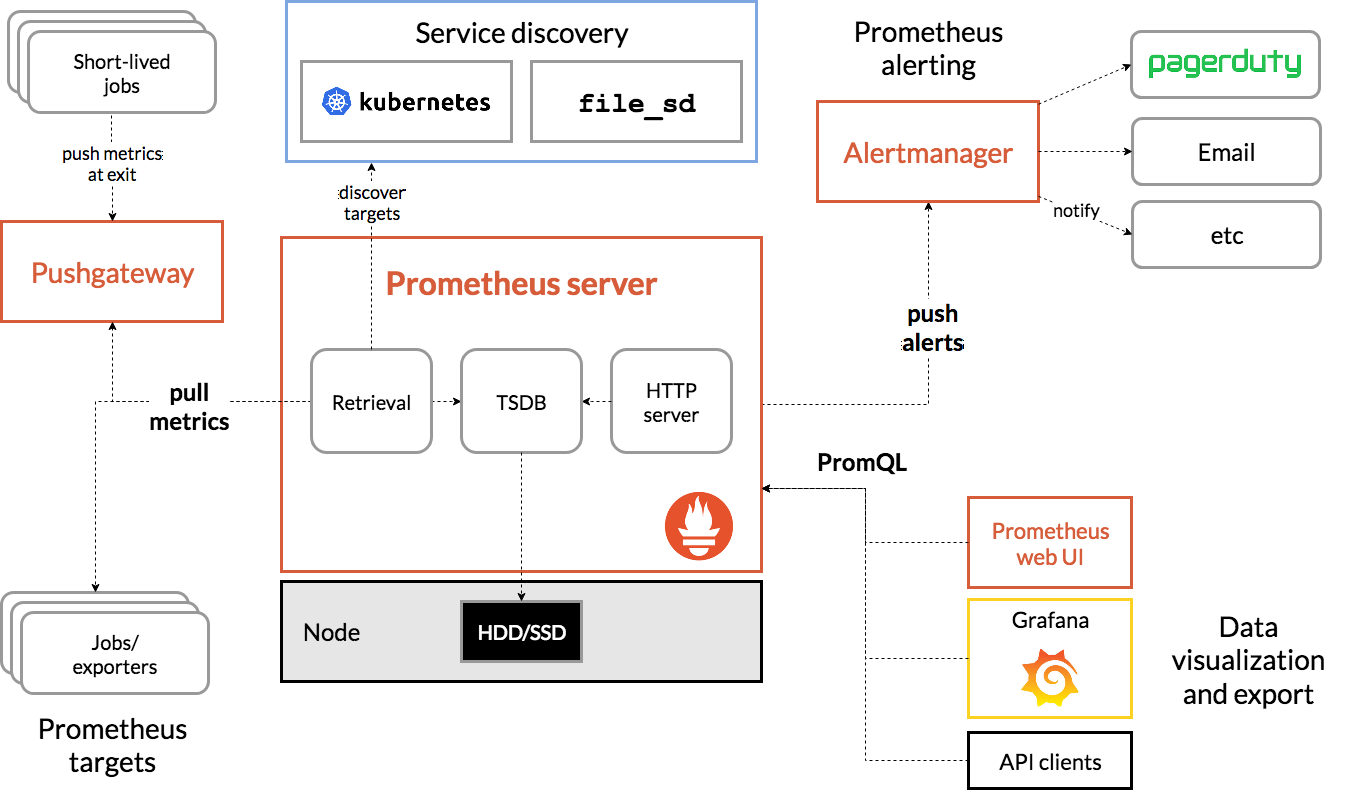
As you can see, Prometheus is somewhat tailored towards
Kubernetes but it can be used without it. We're deploying it with
the file_sd discovery mechanism, where Puppet collects all exporters
into the central server, which then scrapes those exporters every
scrape_interval (by default 15 seconds).
It does not show that Prometheus can federate to multiple instances and the Alertmanager can be configured with High availability. We have a monolithic server setup right now, that's planned for TPA-RFC-33-C.
Metrics types
In monitoring distributed systems, Google defines 4 "golden signals", categories of metrics that need to be monitored:
- Latency: time to service a request
- Traffic: transactions per second or bandwidth
- Errors: failure rates, e.g. 500 errors in web servers
- Saturation: full disks, memory, CPU utilization, etc
In the book, they argue all four should issue pager alerts, but we believe warnings for saturation, except for extreme cases ("disk actually full") might be sufficient.
Alertmanager
The Alertmanager is a separate program that receives notifications generated by Prometheus servers through an API, groups, and deduplicates notifications before sending them by email or other mechanisms.
Here's how the internal design of the Alertmanager looks like:

The first deployments of the Alertmanager at TPO do not feature a "cluster", or high availability (HA) setup.
The Alertmanager has its own web interface to see and silence alerts but it's not deployed in our configuration, we use Karma (previously Cloudflare's unsee) instead.
Alerting philosophy
In general, when working on alerting, keeping the "My Philosophy on Alerting" paper from a Google engineer (now the Monitoring distributed systems chapter of the Site Reliability Engineering O'Reilly book.
Alert timing details
Alert timing can be a hard topic to understand in Prometheus alerting, because there are many components associated with it, and Prometheus documentation is not great at explaining how things work clearly. This is an attempt at explaining various parts of it as I (anarcat) understand it as of 2024-09-19, based the latest documentation available on https://prometheus.io and the current Alertmanager git HEAD.
First, there might be a time vector involved in the Prometheus query. For example, take the query:
increase(django_http_exceptions_total_by_type_total[5m]) > 0
Here, the "vector range" is 5m or five minutes. You might think this
will fire only after 5 minutes have passed. I'm not actually sure. In
my observations, I have found this fires as soon as an increase is
detected, but will stop after the vector range has passed.
Second, there's the for: parameter in the alerting rule. Say this
was set to 5 minutes again:
- alert: DjangoExceptions
  expr: increase(django_http_exceptions_total_by_type_total[5m]) > 0
  for: 5m
This means that the alert will be considered only pending for that
period. Prometheus will not send an alert to the Alertmanager at all
unless increase() was sustained for the period. If that happens,
then the alert is marked as firing and Alertmanager will start
getting the alert.
(Alertmanager might be getting the alert in the pending state, but
that makes no difference to our discussion: it will not send alerts
before that period has passed.)
Third, there's another setting, keep_firing_for, that will make
Prometheus keep firing the alert even after the query evaluates to
false. We're ignoring this for now.
At this point, the alert has reached Alertmanager and it needs to make a decision of what to do with it. More timers are involved.
Alerts will be evaluated against the alert routes, thus aggregated
into a new group or added to an existing group according to that
route's group_by setting, and then Alertmanager will evaluate the
timers set on the particular route that was matched. An alert group is
created when an alert is received and no other alerts already match
the same values for the group_by criteria. An alert group is removed
when all alerts in a group are in state inactive (e.g. resolved).
Fourth, there's the group_wait setting (defaults to 5 seconds, can
be customized by route). This will keep Alertmanager from
routing any alerts for a while thus allowing it to group the first
alert notification for all alerts in the same group in one batch. It
implies that you will not receive a notification for a new alert
before that timer has elapsed. See also the too short documentation
on grouping.
(The group_wait timer is initialized when the alerting group is
created, see [dispatch/dispatch.go, line 415, function
newAggrGroup][].)
Now, more alerts might be sent by Prometheus if more metrics match the above expression. They are different alerts because they have different labels (say, another host might have exceptions, above, or, more commonly, other hosts require a reboot). Prometheus will then relay that alert to the Alertmanager, and another timer comes in.
Fifth, before relaying that new alert that's already part of a firing
group, Alertmanager will wait group_interval (defaults to 5m) before
re-sending a notification to a group.
When Alertmanager first creates an alert group, a thread is started
for that group and the route's group_interval acts like a time
ticker. Notifications are only sent when the group_interval period
repeats.
So new alerts merged in a group will wait up to group_interval before
being relayed.
(The group_interval timer is also initialized [in dispatch.go, line
460, function aggrGroup.run()][]. It's done after that function
waits for the previous timer which is normally based on the
group_wait value, but can be switched to group_interval after that
very iteration, of course.)
So, conclusions:
-
If an alert flaps because it pops in and out of existence, consider tweaking the query to cover a longer vector, by increasing the time range (e.g. switch from
5mto1h), or by comparing against a moving average -
If an alert triggers too quickly due to a transient event (say network noise, or someone messing up a deployment but you want to give them a chance to fix it), increase the
for:timer. -
Inversely, if you fail to detect transient outages, reduce the
for:timer, but be aware this might pick up other noises. -
If alerts come too soon and you get a flood of alerts when an outage starts, increase
group_wait. -
If alerts come in slowly but fail to be group because they don't arrive at the same time, increase
group_interval.
This analysis was done in response to a mysterious failure to send notification in a particularly flappy alert.
Another issue with alerting in Prometheus is that you can only silence warnings for a certain amount of time, then you get a notification again. The kthxbye bot works around that issue.
Alert routing details
Once Prometheus has created an alert, it sends it to one or more instances of Alertmanager. This one in turn is responsible for routing the alert to the right communication channel.
That is, if Alertmanager is correctly configured, that is if it's
configured in prometheus.yml, the alerting section, see
Installation section.
Alert routes are set as a hierarchical tree in which the first route that matches gets to handle the alert. The first-matching route may decide to ask Alertmanager to continue processing with other routes so that the same alert can match multiple routes. This is how TPA receives emails for critical alerts and also IRC notifications for both warning and critical.
Each route needs to have one or more receivers set.
Receivers are and routes are defined in Hiera in hiera/common/prometheus.yaml.
Receivers
Receivers are set in the key prometheus::alertmanager::receivers and look like
this:
- name: 'TPA-email'
  email_configs:
    - to: 'recipient@example.com'
      require_tls: false
      text: '{{ template "email.custom.txt" . }}'
      headers:
        subject: '[{{ .Status | toUpper }}{{ if eq .Status "firing" }}:{{ .Alerts.Firing | len }}{{ end }}] {{ .GroupLabels.SortedPairs.Values | join " -- " }}'
Here we've configured an email recipient. Alertmanager can send alerts with a
bunch of other communications channels. For example to send IRC notifications,
we have a daemon binding to localhost on the Prometheus server waiting for
web hook calls, and the corresponding receiver has a section webhook_configs
instead of email_configs.
Routes
Alert routes are set in the key prometheus::alertmanager::route in Hiera. The
default route, the one set at the top level of that key, uses the receiver
fallback and some default options for other routes.
The default route should not be explicitly used by alerts. We always want to explicitly match on a set of labels to send alerts to the correct destination. Thus, the default recipient uses a different message template that explicitly says there is a configuration error. This way we can more easily catch what's been wrongly configured.
The default route has a key routes. This is where additional routes are set.
A route needs to set a recipient and then can match on certain label values,
using the matchers list. Here's an example for the TPA IRC route:
- receiver: 'irc-tor-admin'
  matchers:
    - 'team = "TPA"'
    - 'severity =~ "critical|warning"'
Pushgateway
The Pushgateway is a separate server from the main Prometheus server that is designed to "hold" onto metrics for ephemeral jobs that would otherwise be around long enough for Prometheus to scrape their metrics. We use it as a workaround to bridge Metrics data with Prometheus/Grafana.
Configuration
The Prometheus server is currently configured mostly through Puppet, where modules define exporters and "export resources" that get collected on the central server, which then scrapes those targets.
The [prometheus-alerts.git repository][] contains all alerts and
some non-TPA targets, specified in the targets.d directory for all
teams.
Services
Prometheus is made of multiple components:
- Prometheus: a daemon with an HTTP API that scrapes exporters and targets for metrics, evaluates alerting rules and sends alerts to the Alertmanager
- Alertmanager: another daemon with HTTP APIs that receives alerts from one or more Prometheus daemons, gossips with other Alertmanagers to deduplicate alerts, and send notifications to receivers
- Exporters: HTTP endpoints that expose Prometheus metrics, scraped by Prometheus
- Node exporter: a specific exporter to expose system-level metrics like memory, CPU, disk usage and so on
- Text file collector: a directory read by the node exporter where other tools can drop metrics
So almost everything happens over HTTP or HTTPS.
Many services expose their metrics by running cron jobs or systemd timers that write to the node exporter text file collector.
Monitored services
Those are the actual services monitored by Prometheus.
Internal server (prometheus1)
The "internal" server scrapes all hosts managed by Puppet for
TPA. Puppet installs a [node_exporter][] on all servers, which
takes care of metrics like CPU, memory, disk usage, time accuracy, and
so on. Then other exporters might be enabled on specific services,
like email or web servers.
Access to the internal server is fairly public: the metrics there are not considered to be security sensitive and protected by authentication only to keep bots away.
External server (prometheus2)
The "external" server, on the other hand, is more restrictive and does not allow public access. This is out of concern that specific metrics might lead to timing attacks against the network and/or leak sensitive information. The external server also explicitly does not scrape TPA servers automatically: it only scrapes certain services that are manually configured by TPA.
Those are the services currently monitored by the external server:
- [
bridgestrap][] - [
rdsys][] - OnionPerf external nodes'
node_exporter - Connectivity test on (some?) bridges (using the
[
blackbox_exporter][])
Note that this list might become out of sync with the actual
implementation, look into Puppet in
profile::prometheus::server::external for the actual deployment.
This separate server was actually provisioned for the anti-censorship team (see this comment for background). The server was setup in July 2019 following #31159.
Other possible services to monitor
Many more exporters could be configured. A non-exhaustive list was built in ticket #30028 around launch time. Here we can document more such exporters we find along the way:
- Prometheus Onion Service Exporter - "Export the status and latency of an onion service"
- [
hsprober][] - similar, but also with histogram buckets, multiple attempts, warm-up and error counts - [
haproxy_exporter][]
There's also a list of third-party exporters in the Prometheus documentation.
Storage
Prometheus stores data in its own custom "time-series database" (TSDB).
Metrics are held for about a year or less, depending on the server. Look at this dashboard for current disk usage of the Prometheus servers.
The actual disk usage depends on:
N: the number of exportersX: the number of metrics they expose- 1.3 bytes: the size of a sample
P: the retention period (currently 1 year)I: scrape interval (currently one minute)
The formula to compute disk usage is this:
N x X x 1.3 bytes x P / I
For example, in ticket 29388, we compute that a simple node exporter setup with 2500 metrics, with 80 nodes, will end up with 137GiB of disk usage:
> 1.3byte/minute * year * 2500 * 80 to Gibyte

  (1,3 * (byte / minute)) * year * 2500 * 80 = approx. 127,35799 gibibytes
Back then, we configured Prometheus to keep only 30 days of samples, but that proved to be insufficient for many cases, so it was raised to one year in 2020, in issue 31244.
In the retention section of TPA-RFC-33, there is a detailed discussion on retention periods. We're considering multi-year retention periods for the future.
Queues
There are a couple of places where things happen automatically on a schedule in the monitoring infrastructure:
- Prometheus schedules scrape jobs (pulling metrics) according to rules that can
differ for each scrape job. Each job can define its own
scrape_interval. The default is to scrape each 15 seconds, but some jobs are currently configured to scrape once every minute. - Each alertmanager alert rule can define its own evaluation interval and delay before triggering. See Adding alerts
- Prometheus can automatically discover scrape targets through different means. We currently don't fully use the auto-discovery feature since we create targets through files created by puppet, so any interval for this feature does not affect our setup.
Interfaces
This system has multiple interfaces. Let's take them one by one.
Trending: Grafana
Long term trends are visible in the Grafana dashboards, which taps into the Prometheus API to show graphs for history. Documentation on that is in the Grafana wiki page.
Alerting: Karma
The main alerting dashboard is the Karma dashboard, which shows the currently firing alerts, and allows users to silence alerts.
Technically, alerts are generated by the Prometheus server and relayed through the Alertmanager server, then Karma taps into the Alertmanager API to show those alerts. Karma provides those features:
- Silencing alerts
- Showing alert inhibitions
- Aggregate alerts from multiple alert managers
- Alert groups
- Alert history
- Dead man's switch (an alert always firing that signals an error when it stops firing)
Notifications: Alertmanager
We aggressively restrict the kind and number of alerts that will actually send notifications. This was done mainly by creating two different alerting levels ("warning" and "critical", above), and drastically limiting the number of critical alerts.
The basic idea is that the dashboard (Karma) has "everything": alerts (both with "warning" and "critical" levels) show up there, and it's expected that it is "noisy". Operators are be expected to look at the dashboard while on rotation for tasks to do. A typical example is pending reboots, but anomalies like high load on a server or a partition to expand in a few weeks is also expected.
All notifications are also sent over the IRC channel (#tor-alerts on
OFTC) and logged through the tpa_http_post_dump.service. It is
expected that operators look at their emails or the IRC channels
regularly and will act upon those notifications promptly.
IRC notifications are handled by the [alertmanager-irc-relay][].
Command-line
Prometheus has a [promtool][] that allows you to query the server
from the command-line, but there's also a HTTP API that we can
use with curl. For example, this shows the hosts with pending
upgrades:
curl -sSL --data-urlencode query='apt_upgrades_pending>0' \
  'https://$HTTP_USER@prometheus.torproject.org/api/v1/query \
  | jq -r .data.result[].metric.alias \
  | grep -v '^null$' | paste -sd,
The output can be passed to a tool like Cumin, for example. This
is actually used in the fleet.pending-upgrades task to show an
inventory of the pending upgrades across the fleet.
Alertmanager also has a amtool tool which can be used to
inspect alerts, and issue silences. It's used in our test suite.
Authentication
Web-based authentication is shared with Grafana, see the Grafana authentication documentation.
Polling from the Prometheus servers to the exporters on servers is permitted by IP address specifically just for the Prometheus server IPs. Some more sensitive exporters require a secret token to access their metrics.
Implementation
Prometheus and Alertmanager are coded in Go and released under the Apache 2.0 license. We use the versions provided by the debian package archives in the current stable release.
Related services
By design, no other service is required. Emails get sent out for some notifications and that might depend on Tor email servers, depending on which addresses receive the notifications.
Issues
There is no issue tracker specifically for this project, File or search for issues in the team issue tracker with the ~Prometheus label.
Known issues
Those are major issues that are worth knowing about Prometheus in general, and our setup in particular:
- Bind mounts generate duplicate metrics, upstream issue: Way to
distinguish bind mounted path?, possible workaround: manually
specify known bind mount points
(e.g.
node_filesystem_avail_bytes{instance=~"$instance:.*",fstype!='tmpfs',fstype!='shm',mountpoint!~"/home|/var/lib/postgresql"}), but that can hide actual, real mount points, possible fix: thenode_filesystem_mount_infometric, added in PR 2970 from 2024-07-14, unreleased as of 2024-08-28 - High cardinality metrics from exporters we do not control can fill the disk
- No long-term metrics storage, issue: multi-year metrics storage
- The web user interface is really limited, and is actually deprecated, with the new React-based one not (yet?) packaged, alternatives (like Grafana) are also bloated Golang/Javascript projects
- Alertmanager doesn't sent notifications when silenced alerts are resolved (PR pending since 2022)
- Alertmanager doesn't send notifications when silences are posted
- Prometheus uses keep alive HTTP requests to probe targets. This means that DNS changes might take longer to take effect than expected. In particular, some servers (e.g. Nginx) allow a lot of keep alive requests (e.g. 1000) which means Prometheus will take a long time to switch the new host (e.g. 16 hours).
A workaround is to shutdown the previous host to force Prometheus
to check the new one during a rotation, or reduce the number of
keep alive requests allowed on the server
(keepalive_requests on Nginx, MaxKeepAliveRequests on
Apache)
See 41902 for further information.
In general, the service is still being launched, see TPA-RFC-33 for the full deployment plan.
Resolved issues
No major issue resolved so far is worth mentioning here.
Maintainers
The Prometheus services have been setup and are managed by anarcat inside TPA.
Users
The internal Prometheus server is mostly used by TPA staff to diagnose issues. The external Prometheus server is used by various TPO teams for their own monitoring needs.
Upstream
The upstream Prometheus projects are diverse and generally active as of early 2021. Since Prometheus is used as an ad-hoc standard in the new "cloud native" communities like Kubernetes, it has seen an upsurge of development and interest from various developers, and companies. The future of Prometheus should therefore be fairly bright.
The individual exporters, however, can be hit and miss. Some exporters are "code dumps" from companies and not very well maintained. For example, Digital Ocean dumped the bind_exporter on GitHub, but it was salvaged by the Prometheus community.
Another important layer is the large amount of Puppet code that is
used to deploy Prometheus and its components. This is all part of a
big Puppet module, [puppet-prometheus][], managed by the Voxpupuli
collective. Our integration with the module is not yet complete:
we have a lot of glue code on top of it to correctly make it work with
Debian packages. A lot of work has been done to complete that work by
anarcat, but work still remains, see upstream issue 32 for
details.
Monitoring and metrics
Prometheus is, of course, all about monitoring and metrics. It is the thing that monitors everything and keeps metrics over the long term.
The server monitors itself for system-level metrics but also application-specific metrics. There's a long-term plan for high-availability in TPA-RFC-33-C.
See also storage for retention policies.
Tests
The prometheus-alerts.git repository has tests that run in GitLab
CI, see the Testing alerts section on how to write those.
When doing major upgrades, the Karma dashboard should be visited to make sure it works correctly.
There is a test suite in the upstream Prometheus Puppet module as well, but it's not part of our CI.
Logs
Prometheus servers typically do not generate many logs, except when errors and warnings occur. They should hold very little PII. The web frontends collect logs in accordance with our regular policy.
Actual metrics may contain PII, although it's quite unlikely: typically, data is anonymized and aggregated at collection time. It would still be able to deduce some activity patterns from the metrics generated by Prometheus, and use it to leverage side-channel attacks, which is why the external Prometheus server access is restricted.
Alerts themselves are retained in the systemd journal, see Checking alert history.
Backups
Prometheus servers should be fully configured through Puppet and
require little backups. The metrics themselves are kept in
/var/lib/prometheus2 and should be backed up along with our regular
backup procedures.
WAL (write-ahead log) files are ignored by the backups, which can lead to an extra 2-3 hours of data loss since the last backup in the case of a total failure, see #41627 for the discussion. This should eventually be mitigated by a high availability setup (#41643).
Other documentation
- Prometheus home page
- Prometheus documentation
- Prometheus developer blog
- Awesome Prometheus listen
- Blue book - interesting guide
- Robust perception consulting has a series of blog posts on Prometheus
Discussion
Overview
The Prometheus and Grafana services were setup after anarcat realized that there was no "trending" service setup inside TPA after Munin had died (ticket 29681). The "node exporter" was deployed on all TPA hosts in mid-march 2019 (ticket 29683) and remaining traces of Munin were removed in early April 2019 (ticket 29682).
Resource requirements were researched in ticket 29388 and it was originally planned to retain 15 days of metrics. This was expanded to one year in November 2019 (ticket 31244) with the hope this could eventually be expanded further with a down-sampling server in the future.
Eventually, a second Prometheus/Grafana server was setup to monitor external resources (ticket 31159) because there were concerns about mixing internal and external monitoring on TPA's side. There were also concerns on the metrics team about exposing those metrics publicly.
It was originally thought Prometheus could completely replace Nagios as well issue 29864, but this turned out to be more difficult than planned.
The main difficulty is that Nagios checks come with builtin threshold of acceptable performance. But Prometheus metrics are just that: metrics, without thresholds... This made it more difficult to replace Nagios because a ton of alerts had to be rewritten to replace the existing ones.
This was performed in TPA-RFC-33, over the course of 2024 and 2025.
Security and risk assessment
There were no security review yet.
The shared password for accessing the web interface is a challenge. We intend to replace this soon with individual users.
There were no risk assessments done yet.
Technical debt and next steps
In progress projects:
- merging external and internal monitoring servers
- reimplementing some of the alerts that were in icinga
Proposed Solutions
TPA-RFC-33
TPA's monitoring infrastructure has been originally setup with Nagios and Munin. Nagios was eventually removed from Debian in 2016 and replaced with Icinga 1. Munin somehow "died in a fire" some time before anarcat joined TPA in 2019.
At that point, the lack of trending infrastructure was seen as a serious problem, so Prometheus and Grafana were deployed in 2019 as a stopgap measure.
A secondary Prometheus server (prometheus2) was setup with stronger
authentication for service admins. The rationale was that those
services were more privacy-sensitive and the primary TPA setup
(prometheus1) was too open to the public, which could allow for
side-channels attacks.
Those tools has been used for trending ever since, while keeping Icinga for monitoring.
During the March 2021 hack week, Prometheus' Alertmanager was deployed on the secondary Prometheus server to provide alerting to the Metrics and Anti-Censorship teams.
Munin replacement
The primary Prometheus server was decided in the Brussels 2019 developer meeting, before anarcat joined the team (ticket 29389). Secondary Prometheus server was approved in meeting/2019-04-08. Storage expansion was approved in meeting/2019-11-25.
Other alternatives
We considered retaining Nagios/Icinga as an alerting system, separate from Prometheus, but ultimately decided against it in TPA-RFC-33.
Alerting rules in Puppet
Alerting rules are currently stored in an external
[prometheus-alerts.git repository][] that holds not only TPA's
alerts, but also those of other teams. So the rules
are not directly managed by puppet -- although puppet will ensure
that the repository is checked out with the most recent commit on the
Prometheus servers.
The rationale is that rule definitions should appear only once and we already had the above-mentioned repository that could be used to configure alerting rules.
We were concerned we would potentially have multiple sources of truth for alerting rules. We already have that for scrape targets, but that doesn't seem to be an issue. It did feel, however, critical for the more important alerting rules to have a single source of truth.
PuppetDB integration
Prometheus 2.31 and later added support for PuppetDB service
discovery, through the puppetdb_sd_config parameter. The
sample configuration file shows a bit what's possible.
This approach was considered during the bookworm upgrade but ultimately rejected because it introduces a dependency on PuppetDB, which becomes a possible single point of failure for the monitoring system.
We also have a lot of code in Puppet to handle the exported resources necessary for this, and it would take a lot of work to convert over.
Mobile notifications
Like others we do not intend on having on-call rotation yet, and will not ring people on their mobile devices at first. After all exporters have been deployed (priority "C", "nice to have") and alerts properly configured, we will evaluate the number of notifications that get sent out. If levels are acceptable (say, once a month or so), we might implement push notifications during business hours to consenting staff.
We have been advised to avoid Signal notifications as that setup is
often brittle, signal.org frequently changing their API and leading
to silent failures. We might implement alerts over Matrix
depending on what messaging platform gets standardized in the Tor
project.
Migrating from Munin
Here's a quick cheat sheet from people used to Munin and switching to Prometheus:
| What | Munin | Prometheus |
|---|---|---|
| Scraper | munin-update |
Prometheus |
| Agent | munin-node |
Prometheus, node-exporter and others |
| Graphing | munin-graph |
Prometheus or Grafana |
| Alerting | munin-limits |
Prometheus, Alertmanager |
| Network port | 4949 | 9100 and others |
| Protocol | TCP, text-based | HTTP, text-based |
| Storage format | RRD | Custom time series database |
| Down-sampling | Yes | No |
| Default interval | 5 minutes | 15 seconds |
| Authentication | No | No |
| Federation | No | Yes (can fetch from other servers) |
| High availability | No | Yes (alert-manager gossip protocol) |
Basically, Prometheus is similar to Munin in many ways:
-
It "pulls" metrics from the nodes, although it does it over HTTP (to http://host:9100/metrics) instead of a custom TCP protocol like Munin
-
The agent running on the nodes is called
prometheus-node-exporterinstead ofmunin-node. It scrapes only a set of built-in parameters like CPU, disk space and so on, different exporters are necessary for different applications (likeprometheus-apache-exporter) and any application can easily implement an exporter by exposing a Prometheus-compatible/metricsendpoint -
Like Munin, the node exporter doesn't have any form of authentication built-in. We rely on IP-level firewalls to avoid leakage
-
The central server is simply called
prometheusand runs as a daemon that wakes up on its own, instead ofmunin-updatewhich is called frommunin-cronand before thatcron -
Graphics are generated on the fly through the crude Prometheus web interface or by frontends like Grafana, instead of being constantly regenerated by
munin-graph -
Samples are stored in a custom "time series database" (TSDB) in Prometheus instead of the (ad-hoc) RRD standard
-
Prometheus performs no down-sampling like RRD and Prom relies on smart compression to spare disk space, but it uses more than Munin
-
Prometheus scrapes samples much more aggressively than Munin by default, but that interval is configurable
-
Prometheus can scale horizontally (by sharding different services to different servers) and vertically (by aggregating different servers to a central one with a different sampling frequency) natively -
munin-updateandmunin-graphcan only run on a single (and same) server -
Prometheus can act as a high availability alerting system thanks to its
alertmanagerthat can run multiple copies in parallel without sending duplicate alerts -munin-limitscan only run on a single server
Migrating from Nagios/Icinga
Near the end of 2024, Icinga was replaced by Prometheus and Alertmanager, as part of TPA-RFC-33.
The project was split into three phases from A to C.
Before Icinga was retired, we performed an audit of the notifications sent from Icinga about our services (#41791) to see if we're missing coverage over something critical.
Overall, phase A covered most critical alerts we were worried about, but left out key components as well, which are not currently covered by monitoring.
In phase B we implemented more alerts, integrated more metrics that were necessary for some new alerts and did a lot of work on ensuring that we wouldn't be getting double alerts for the same problem. It is also planned to merge the external monitoring server in this phase.
Phase C concerns the setup of high availability between two prometheus servers, each with its own alertmanager instance, and to finalize implementing alerts.
Prometheus equivalence for Icinga/Nagios checks
This is an equivalence table between Nagios checks and their equivalent Prometheus metric, for checks that have been explicitly converted into Prometheus alerts and metrics as part of phase A.
| Name | Command | Metric | Severity | Note |
|---|---|---|---|---|
disk usage - * |
check_disk |
node_filesystem_avail_bytes |
warning / critical |
Critical when less than 24h to full |
network service - nrpe |
check_tcp!5666 |
up |
warning |
|
raid -DRBD |
dsa-check-drbd |
node_drbd_out_of_sync_bytes, node_drbd_connected |
warning |
|
raid - sw raid |
dsa-check-raid-sw |
node_md_disks / node_md_state |
warning |
Not warning about arrays synchronization |
apt - security updates |
dsa-check-statusfile |
apt_upgrades_* |
warning |
Incomplete |
needrestart |
needrestart -p |
kernel_status, microcode_status |
warning |
Required patching upstream |
network service - sshd |
check_ssh --timeout=40 |
probe_success |
warning |
Sanity check, overlaps with systemd check, but better be safe |
network service - smtp |
check_smtp |
probe_success |
warning |
Incomplete, need end-to-end deliverability checks, scheduled for phase B |
network service - submission |
check_smtp_port!587 |
probe_success |
warning |
|
network service - smtps |
dsa_check_cert!465 |
probe_success |
warning |
|
network service - http |
check_http |
probe_http_duration_seconds |
warning |
See also #40568 for phase B |
network service - https |
check_https |
Idem | warning |
Idem, see also #41731 for exhaustive coverage of HTTPS sites |
https cert and smtps |
dsa_check_cert |
probe_ssl_earliest_cert_expiry |
warning |
Check for cert expiry for all sites, this is about "renewal failed" |
backup - bacula - * |
dsa-check-bacula |
bacula_job_last_good_backup |
warning |
Based on WMF's [check_bacula.py][] |
redis liveness |
Custom command | probe_success |
warning |
Checks that the Redis tunnel works |
postgresql backups |
dsa-check-backuppg |
tpa_backuppg_last_check_timestamp_seconds |
warning |
Built on top of NRPE check for now, see TPA-RFC-65 for long term |
Actual alerting rules can be found in the [prometheus-alerts.git
repository][].
High priority missing checks, phase B
Those checks are all scheduled in phase B, and are considered high priority, or at least specific due dates have been set in issues to make sure we don't miss (for example) the next certificate expiry dates.
| Name | Command | Metric | Severity | Note |
|---|---|---|---|---|
DNS - DS expiry |
dsa-check-statusfile |
TBD | warning |
Drop DNSSEC? See #41795 |
Ganeti - cluster |
check_ganeti_cluster |
[ganeti-exporter][] |
warning |
Runs a full verify, costly, was already disabled |
Ganeti - disks |
check_ganeti_instances |
Idem | warning |
Was timing out and already disabled |
Ganeti - instances |
check_ganeti_instances |
Idem | warning |
Currently noisy: warns about retired hosts waiting for destruction, drop? |
SSL cert - LE |
dsa-check-cert-expire-dir |
TBD | warning |
Exhaustively check all certs, see #41731, possibly with critical severity for actual prolonged down times |
SSL cert - db.torproject.org |
dsa-check-cert-expire |
TBD | warning |
Checks local CA for expiry, on disk, /etc/ssl/certs/thishost.pem and db.torproject.org.pem on each host, see #41732 |
puppet - * catalog run(s) |
check_puppetdb_nodes |
[puppet-exporter][] |
warning |
|
system - all services running |
systemctl is-system-running |
node_systemd_unit_state |
warning |
Sanity check, checks for failing timers and services |
Those checks are covered by the priority "B" ticket (#41639), unless otherwise noted.
Low priority missing checks, phase B
Unless otherwise mentioned, most of those checks are noisy and generally do not indicate an actual failure, so they were not qualified as being priorities at all.
| Name | Command | Metric | Severity | Note |
|---|---|---|---|---|
DNS - delegation and signature expiry |
dsa-check-zone-rrsig-expiration-many |
[dnssec-exporter][] |
warning |
|
DNS - key coverage |
dsa-check-statusfile |
TBD | warning |
|
DNS - security delegations |
dsa-check-dnssec-delegation |
TBD | warning |
|
DNS - zones signed properly |
dsa-check-zone-signature-all |
TBD | warning |
|
DNS SOA sync - * |
dsa_check_soas_add |
TBD | warning |
Never actually failed |
PING |
check_ping |
probe_success |
warning |
|
load |
check_load |
node_pressure_cpu_waiting_seconds_total |
warning |
Sanity check, replace with the better pressure counters |
mirror (static) sync - * |
dsa_check_staticsync |
TBD | warning |
Never actually failed |
network service - ntp peer |
check_ntp_peer |
node_ntp_offset_seconds |
warning |
|
network service - ntp time |
check_ntp_time |
TBD | warning |
Unclear how that differs from check_ntp_peer |
setup - ud-ldap freshness |
dsa-check-udldap-freshness |
TBD | warning |
|
swap usage - * |
check_swap |
node_memory_SwapFree_bytes |
warning |
|
system - filesystem check |
dsa-check-filesystems |
TBD | warning |
|
unbound trust anchors |
dsa-check-unbound-anchors |
TBD | warning |
|
uptime check |
dsa-check-uptime |
node_boot_time_seconds |
warning |
Those are also covered by the priority "B" ticket (#41639), unless otherwise noted. In particular, all DNS issues are covered by issue #41794.
Retired checks
| Name | Command | Rationale |
|---|---|---|
users |
check_users |
Who has logged-in users?? |
processes - zombies |
check_procs -s Z |
Useless |
processes - total |
check_procs 620 700 |
Too noisy, needed exclusions for builders |
processes - * |
check_procs $foo |
Better to check systemd |
unwanted processes - * |
check_procs $foo |
Basically the opposite of the above, useless |
LE - chain |
Checks for flag file | See #40052 |
CPU - intel ucode |
dsa-check-ucode-intel |
Overlaps with needrestart check |
unexpected sw raid |
Checks for /proc/mdstat |
Needlessly noisy, just means an extra module is loaded, who cares |
unwanted network service - * |
dsa_check_port_closed |
Needlessly noisy, if we really want this, use [lzr][] |
network - v6 gw |
dsa-check-ipv6-default-gw |
Useless, see #41714 for analysis |
check_procs, in particular, was generating a lot of noise in
Icinga, as we were checking dozens of different processes, which would
all explode at once when a host would go down and Icinga didn't notice
the host being down.
Service admin checks
The following checks were not audited by TPA but checked by the respective team's service admins.
| Check | Team |
|---|---|
bridges.tpo web service |
Anti-censorship |
| "mail queue" | Anti-censorship |
tor_check_collector |
Network health |
tor-check-onionoo |
Network health |
Other Alertmanager receivers
Alerts are typically sent over email, but Alertmanager also has builtin support for:
There's also a generic web hook receiver which is typically used to send notifications. Many other endpoints are implemented through that web hook, for example:
- Cachet
- Dingtalk
- Discord
- Google Chat
- IRC
- Matrix: [
matrix-alertmanager][] (JavaScript) or knopfler (Python), see also #40216 - Mattermost
- Microsoft teams
- Phabricator
- Sachet supports many messaging systems (Twilio, Pushbullet, Telegram, Sipgate, etc)
- Sentry
- Signal (or Signald)
- Splunk
- SNMP
- Telegram: [
nopp/alertmanager-webhook-telegram-python][] or [metalmatze/alertmanager-bot][] - Twilio
- Zabbix: [
alertmanager-zabbix-webhook][] or [zabbix-alertmanager][]
And that is only what was available at the time of writing, the
[alertmanager-webhook][] and [alertmanager tags][] GitHub might
have more.
The Alertmanager web interface is not shipped with the Debian package,
because it depends on the Elm compiler which is not in
Debian. It can be built by hand using the debian/generate-ui.sh
script, but only in newer, post buster versions. Another alternative
to consider is Crochet.